tail command in linux instantly reveals the latest entries of files, such as for viewing a constantly changing website log file that only contains the most recent errors without needing to search through 1,000s of previous error messages.
command tail in linux does not only stop you from losing focus on the signals that matter, but now you’ll gain confidence to easily monitor a live log file for errors as they come up and to identify the cause of the error.
By following this article you will acquire the knowledge, skills, confidence and tools to monitor all activity on a file in real time.
Table of Contents
- What does tail command do exactly?
- How to use tail command in linux
- Basic ways to use command tail in linux
- All available options
- Monitor live log files
- Real-time file watching (-f)
- Real examples from daily work
- Combine with pipes and tools
- Fix common problems
- Alternative monitoring methods
- Tail Command Benefits: Questions Answered
What does tail command in linux do exactly?
This is the reverse concept of a “newspaper headline reader” in that it’s designed to give you one specific piece of information (the most recent update/conclusion) without having to read through everything before finding it.
One example would be how in a technical setting, you have system log files that are continually added to over time. With Linux, the use of the tail command in linux allows you to skip right to the most recent log entry by jumping to the end of the file.
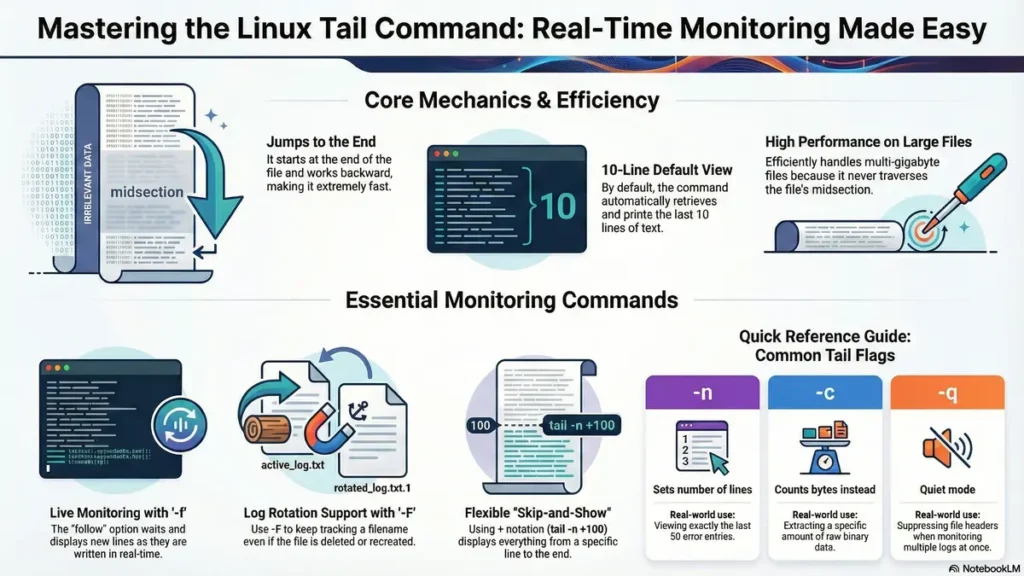
tail command in linux is also lightweight. Rather than reading from the beginning of a given file through to the very end, it starts with the end of the file and works backwards (i.e., up the file) while searching for the last several lines added to the log.
Because it’s so fast and efficient, the tail command in linux is vital for server administrators. In the case of website crashes, you typically find the most pertinent piece of information at the bottom of the log file detailing your error logs. The utility allows you to eliminate the wait time associated with opening large text-based files. It’s considered a standard for quickly verifying data in a terminal window.
How to use tail command in linux
tail command in linux determines the ‘end-of-file’ marker and scans upward from the point at which it has located the end of the file to find line breaks to identify where lines originate.
The tail command (by default) in Linux machine will automatically look for up to 10 of the last lines in a document or file; within the same instance as the program capturing that information, it prints them to the screen for your convenience to be observed.
When a file only contains 1 to 10 total lines of text, it indicates everything in the displayed area is all there is and therefore the program makes the most efficient use of data based on the physical size of it.
The speed of program execution is very fast in this case, even with a very large file (many gigabytes) because the tail command does not traverse through the file’s midsection.
Additionally, the tool may be configured to count bytes instead of line breaks, this is especially helpful when needing to extract a small amount of raw binary data from an encoding stream.
Basic ways to use command tail in linux
Use the “tail” command followed by the filename and, if needed, the desired number of lines you want to see at the end of that file.
For instance: typing tail report.txt retrieves the most recent ten lines of “report.txt”.
If ten lines is not right for your needs, you can specify the number of lines you wish to see at the end of the file, via a command line option. The following example shows how to retrieve only the most recent five lines from the report.txt file:
tail -n 5 report.txt.
If you want to view the last twenty lines from the report.txt file, you could use a shorthand notation, and instead of typing tail -n 20 report.txt, just type tail -20 report.txt.
You can view multiple files and see the end of each of those files at the same time. Each set of results will be formatted the same way, except the filename of each file that was viewed will be listed above the results of that file.
tail command in linux is very useful when comparing two different log files to determine whether there were errors occurring in both log files at the same time across two different services.
All available options in tail command
While the basic usage covers most needs, several flags can enhance your monitoring capabilities. These options allow for granular control over the output.
| Option | What it does | Real-world Use |
|---|---|---|
| -n | Sets the number of lines | Showing exactly 50 lines of a log. |
| -f | Follows the file live | Watching a web server log update. |
| -c | Counts bytes instead | Getting the last 100 characters of a file. |
| -q | Quiet mode | Hiding filenames when viewing multiple logs. |
| -s | Sleep interval | Checking for updates every 5 seconds. |
A unique feature of the tail command in Linux is the plus sign (+) notation. Using tail -n +100 tells the tool to start from line 100 and show everything until the end.
This is perfect when you know a file has a long header you want to skip. It turns the tool into a flexible “skip-and-show” utility.
Monitor live log files with tail command in linux
Log Monitoring is primarily done with this tool. As with most server applications, logs are created in the background and saved into files which contain information about the events that occur.
When you are troubleshooting an issue, it is important to see the log as soon as the event happens.
tail command in linux allows you to have access to live logs.
By using the tail command, you can quickly determine if a certain user has logged into your system or whether a database query has failed. This quick access allows you to respond to events as they happen.
It is common for users to work with this logger while also running an application in “verbose” mode. This allows you to see both applications’ output as well as monitor log activity in real-time.
By using this combination of tools and procedures, you can catch intermittent bugs that only occur for a split-second due to specific user actions or global events.
Real-time file watching (-f) with tail command in linux
The -f option is what many know as “follow” and is the most famous command option of tail command in linux.
tail -f will not return you to your command prompt after its run, instead it will just “wait” until something is written to the file by the server.
When you run the command “tail -f access.log” you can see the server writing new lines of text to the file just like a live chat feed! This option is important to software developers who are testing their code and need to know about error messages as soon as they occur.
If for instance, you have a file that has been deleted and then recreated after a log rotation event, using the normal follow option may not continue following the file. To keep track of the filename even through log rotations use the -F option instead of the -f option.
To stop following a file, press “Ctrl + C” to terminate the process and return to the standard command line prompt.
Real examples from daily work
When installing a new software program and noticing that it appears to be “stuck,” you may be able to view the end of the installation by looking at the installation log for the last successful step.
As a web developer, you could use the tail command on a Linux server to watch your PHP error log while reloading your webpage in your browser.
For system administrators, checking the /var/log/auth.log with the tail command can help identify any recent login attempts and identify the attempts that have been made to apply brute force to gain access.
If you run a mail server, watching the mail queue log while performing a tail to end command allows you to check on the messages being sent in a timely manner.
Even with simple tasks such as checking whether a file has completed downloading, you can quickly check the “tail” of the file using this command.
tail command in linux Combine with pipes and tools
A common use for this application (as with any terminal application) is in coordination with other terminal applications. With the right command syntax you can pipe the information generated by your search directly into this application. For example, if all you need to know is what were the most recent 5 errors in a log that matched the word critical, you could type the command: grep ‘critical’ app.log | tail -n 5 to get that information.
Long-running or continuously active processes usually generate a lot of output and it can be difficult to keep up with everything that is happening. So, one method to monitoring the ongoing activity of a long-running script is to write its output to a file and then open a separate terminal session (or window) and use that terminal to continuously read the targeted file as the log file continues to grow.
Using tail along with awk allows you to format the last few lines of an csv file as they are displayed, allowing you to make the output more understandable.
Another method/option for using the tail command with the watch command found in Linux, is by using the follow flag to see only the most recently updated record, when the target file does not change frequently, as opposed to using watch to see the latest of all mounted records.
Fix common problems
If you attempt to follow a file but do not see any data being outputted, there is a possibility that the file you are attempting to follow does not contain any new entries, or that you do not possess sufficient permission to access the file’s contents.
System-level logs are typically available by using the sudo command. It is imperative that you ensure you have the appropriate permissions to access the file before concluding that the command that you are using is faulty.
If the output generated appears to be garbled, you may actually be viewing a binary file, which this command was not designed to interpret; binary files will appear as a series of random characters.
If you are following several different files, and are becoming distracted by the output of the header information from each file, then you may suppress the headers by use of the -q option so that you can see only the data continuously streaming.
Alternative monitoring methods
Less + F is an alternative of tail command as there are benefits to using less + F. Less allows you to pause by pressing “F” as well as to scroll back to see older lines of logs.
Multitail is a powerful tool used for monitoring servers that require monitoring of multiple directories/files simultaneously. Typically, Multitail provides a split view of each file with different colors for different keywords within the logs.
For distributing systems like Ubuntu or Fedora, and viewing in real time on the system journal is done using journalctl -f.
For graphic interfaces, Gnome Logs is one example of a graphical application that can display logs. However Gnome Logs is much slower and does not support the ability to process logs through the use of scripts as would using the terminal.
While there exist other alternatives for viewing log files through the Terminal, the tail command remains the most commonly used and reliable method of checking the (end of) log files regardless of distribution.
command tail in liunx: Questions Answered
1. How many lines does tail command in linux show by default? It displays the last 10 lines of the specified file.
2. Can I follow more than one file? Yes, tail -f file1 file2 will follow both and label the updates accordingly.
3. How do I stop the follow mode? Press Ctrl + C on your keyboard to exit the live monitoring view.
4. What is the difference between -f and -F? -f follows the specific file, while -F follows the filename, even if the file is replaced or renamed.
5. Can I see lines starting from the middle using tail command in linux? Yes, use tail -n +[line_number] to start from a specific point and go to the end.
6. Does the tail command in Linux work on Mac? Yes, it is available in the Mac terminal as it is a Unix-based utility.
7. How do I count bytes instead of lines using tail command in linux? Use the -c flag followed by the number of bytes you want to see.
8. Can it show the filename in the output? It does this automatically for multiple files. For a single file, use the -v flag.
9. Is there a way to refresh the follow speed? You can use the -s flag to set the number of seconds between checks.
10. Can I save the last 50 lines to a new file? Yes, use the redirect operator: tail -n 50 old.log > new.log.
11. Why does it say “cannot open for reading”? This is usually a permission issue. Try running the command with sudo.
12. Can it monitor a pipe? Yes, it can receive data from other commands and show the final few lines of that output.
13. How do I watch a log on a remote server? You can combine it with SSH: ssh user@host "tail -f /var/log/app.log".
14. Does it use a lot of CPU? No, it is extremely efficient as it doesn’t need to read the entire file into memory.
15. Can it handle large log files? It handles multi-gigabyte files easily because it jumps straight to the end.
16. Can I use it to find the last time a word appeared? Use grep "word" file | tail -n 1 to find the most recent occurrence.
17. What happens if the file is empty? It will simply return to the prompt (or wait if you are using follow mode).
18. Can I see the very last byte of a file using command tail in linux? Yes, use tail -c 1 to extract just the final character.
19. Is there a help menu for tail command in linux? You can type tail --help or man tail to see the full manual.
20. Why do people use the tail command in Linux for debugging? Because it provides the most recent error messages which are usually the cause of a crash.
Stay Connected with My Coding Journey
Don’t let scammers stop your professional growth. Join our community for more tech safety tips!
For more tutorials and guides, check out: CodingJourney.co.in