less command in linux:Back in the early days of computing, when you opened a huge log file on a terminal, it was as if you were attempting to drink water from a fire hose.
You typed in a command to open the file or “document”
, and suddenly thousands of lines of code began rushing past, with you only able to view the end of the file. You had no clue what had come before!
There was a need for a solution to allow sysadmins & devs to limit how much data was being processed at once and to allow them to view the previous & next sections of data to help prevent using too much memory on the machine.
That is why there is the command called "less" command in Linux, which was designed to provide a less resource-intensive alternative to the "more" command, and to provide more functionality than "more".
System administrators and developers needed a way to pause the flow—a way to move backward and forward through data without overloading the computer’s memory. This is where the less command in linux stepped in. It changed the game by being “less” demanding on resources while offering significantly “more” functionality than its predecessor, more.
Table of Contents
- What is the less Command in Linux?
- Why Use less in linux Over more or cat?
- Basic Syntax and Getting Started
- Essential Navigation Shortcuts
- Searching Within a File
- Advanced Features for Power Users
- Commonly Used Options (Flags)
- 20 Frequently Asked Questions (FAQ):command less in linux
What is the less Command?
A terminal paging utility called the less command in linux allows a user to examine the contents of a text file page by page instead of scrolling through an entire file in a text editor (such as vim or nano).
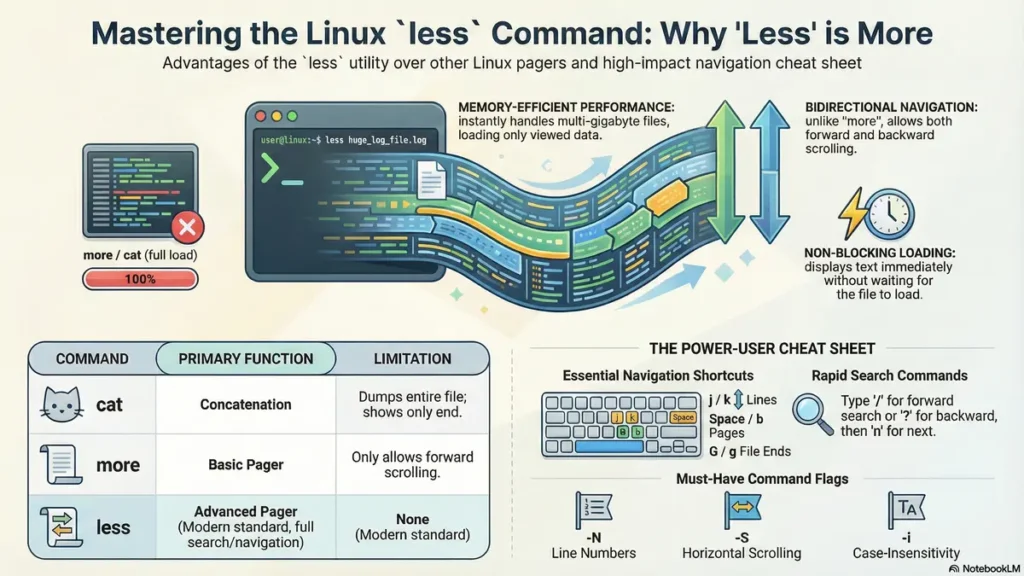
In contrast to traditional text editors, less does not require loading an entire file into memory prior to displaying it, therefore it is extraordinarily fast at displaying large log files that may be multiple gigabytes in size.
The less command is based on the Linux philosophy of “more”
, but in a twist of the famous Unix phrase (“less is more, but more than more”
) less is a better version of the original "more" command.
Why Use less command in linux Over more or cat?
If you are new to the Linux command line interface (CLI), you might wonder why you can’t just use cat. Here is the breakdown of the hierarchy:
- cat (Concatenate): Dumps the entire file into the terminal. If the file is 10,000 lines long, you’ll only see the last few lines.
- more: An older pager that allows you to scroll down. Its biggest limitation is that you cannot easily scroll back up through the text.
- less: The modern standard. It allows both forward and backward navigation, efficient searching, and it doesn’t wait for the file to finish loading before it starts displaying text.
Basic Syntax and Getting Started
The syntax for the less in linux is straightforward:
less [options] filenameFor example, to view a file named server.log, you would type:
less server.logOnce the file is open, your terminal transforms into a viewing window. You won’t see a command prompt at the bottom; instead, you’ll see the filename or a colon (:) indicating the program is ready for a navigation command.
Essential Navigation Shortcuts
Navigation is where less truly shines. You don’t need to rely solely on arrow keys; these shortcuts make browsing data much faster:
| Action | Key Shortcut |
|---|---|
| Scroll Down one line | j or Enter |
| Scroll Up one line | k |
| Scroll Down one window | Space or Page Down |
| Scroll Up one window | b or Page Up |
| Go to the end of the file | G |
| Go to the start of the file | g |
| Quit less | q |
Searching Within a File using less command in linux
Searching is one of the most powerful features for debugging logs. Use these patterns to find exactly what you need:
- Forward Search: Type
/followed by your search term and pressEnter. (e.g.,/error) - Backward Search: Type
?followed by your search term. (e.g.,?warning) - Find Next/Previous:
- Press
nto find the next occurrence in the same direction. - Press
Nto find the previous occurrence.
- Press
Advanced Features for Power Users
Multiple File Viewing Options
With the use of less, you can open multiple files simultaneously.
less file1.txt file2.txtThen, to navigate to the next file, type :n to navigate to the previous file type :p.
File Following
While inside less, it is similar to tail -f.
To place less into “follow mode”
(as new lines are added, the screen is refreshed) press Shift + f.
To stop following, press Ctrl + C.
Opening Using Pattern Matching
less +/error system.logTo open a file and jump immediately to the first occurrence of a particular word: less +/error system.log
Some Commonly Used Flag Options
20 Frequently Asked Questions (FAQ)
Navigating the Linux filesystem and viewing log files can be daunting for beginners. Using LSI keywords like command line tools, terminal navigation, and file viewing utilities, we’ve answered the most common queries below.
- How do I exit the less command in linux?
Simply press theqkey. - Can I edit a file while using command less in linux?
Yes! Pressvto open the file in your default editor (vi/nano). - Does less command in linux work with piped data?
Yes, e.g.,cat file.txt | less. - How do I show line numbers?
Useless -N filename. - How do I search case-insensitively?
Use the-iflag or type-iwhile viewing. - Can less open .gz files?
Use thezlesscommand for compressed files. - How do I jump to the middle of a file?
Type50pto jump to the 50% mark. - What makes less better than more?
Backward navigation and faster loading speeds. - Does less clear the screen on exit?
Usually, yes. Use-Xto prevent this. - Can I mark a line?
Pressmato mark, then'ato return to it. - How do I scroll horizontally?
Open with-Sand use arrow keys. - Is less available on macOS?
Yes, it is the default pager. - How do I search for a literal “/”?
Type\/to escape the character. - Can I change the bottom prompt?
Yes, using the-Poption. - Does it support syntax highlighting?
Not natively, but you can pipepygmentizeinto it. - How do I go to a specific line number using less command in linux?
Type the number followed byg(e.g.,500g). - What does “End” mean?
You have reached the bottom of the file. - Can I use it to view script output?
Yes:./script.sh | less. - Is less installed on all distros?
Yes, it is an industry standard. - Why the name “less”?
A clever pun on the “more” command: “Less is more.”
If you are new to Linux, learning Basic Linux Commands is the first and most important step.
Linux commands help you interact with the operating system using the terminal.
This article from
Coding Journey explains essential Linux commands in simple language.
Stay Connected with My Coding Journey
Don’t let scammers stop your professional growth. Join our community for more tech safety tips!
For more tutorials and guides, check out: CodingJourney.co.in