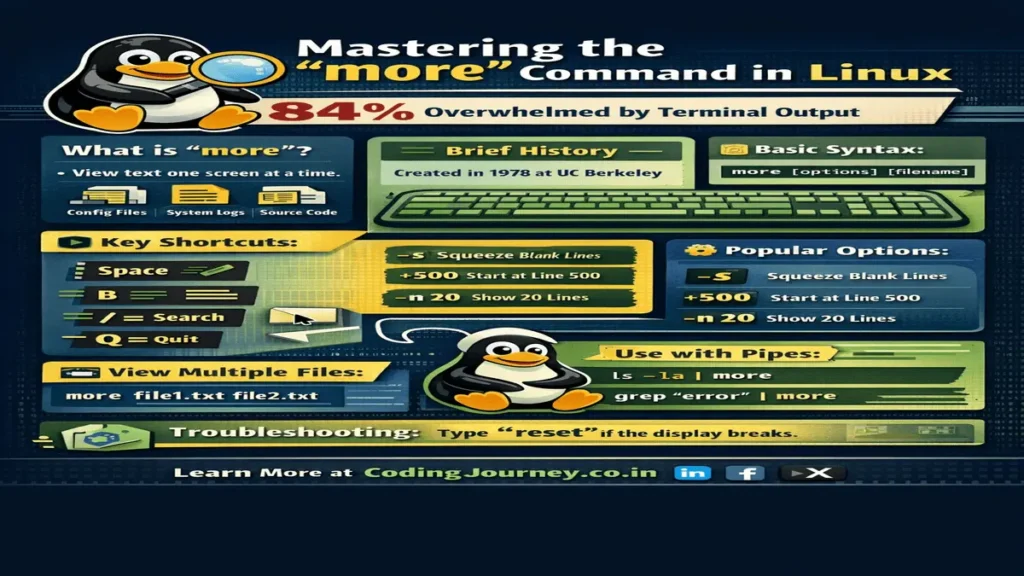
more command in linux A recent study showed that 84% of the participants had experienced overwhelming amounts of output on their terminals. In most cases, users were unable to read through all of the data presented to them immediately after executing the command. The only tool available to help users through this situation is the Linux command called more. The more command in linux allows users to view the output of the previously executed command sequentially, one screenful at a time.
In this article, we will provide an overview of the Linux command more, beginning with its history through to advanced terminal piping. As a programmer, data scientist or student, learning how to use the more command in Linux will provide you with the basic skills that will serve as building blocks to advanced system administration skills.
Table of Contents
- What is the command more in linux? A Deep Dive
- The History of Pagers: From Unix to Modern Linux
- Basic Syntax and Anatomy of the Command
- Mastering Navigation: Essential Keyboard Shortcuts
- Advanced Command Options and Flags
- Piping and Redirection: Using More command in linux with Other Tools
- Viewing Multiple Files Simultaneously
- Environment Variables: Customizing Your Experience
- More vs. Less vs. Cat: Choosing the Right Tool
- Limitations of the More Command in linux
- Troubleshooting and Terminal Resetting
- 20 Frequently Asked Questions (FAQs)
What is the More Command in linux? A Deep Dive
The more command in Linux is often grouped together with other commands that fall into this type of grouping. The difference between cat and more is that cat will concatenate and print out an entire file to your screen, whereas more displays just the first screen full of the file and then waits for you to press a key before displaying the next screen.
The more command in linux is useful for the following types of things:
- Configuration Files: When you are trying to read a configuration file (for example,
/etc/nginx/nginx.conf) you want to make sure that you pay attention to each line. - System Logs: When you are looking for the cause of a service failure (in this case,
/var/log/syslog) you will want to go through the log file line by line. - Source Code: When you are trying to look through a long script to find out where a specific function is located (sometimes it can be difficult to locate functions in large scripts),
morecan help you locate that function quickly. - Manuals: You can use the
morecommand in linux to read documentation from the command line.
The History of Pagers: From Unix to Modern Linux
In the first half of the 1970s and 80s, computer terminals were mainly physical machines with limited memory and slow baud rates. When a computer system sent 100 lines of text to a terminal that was displaying 24 lines, the first 76 lines effectively disappeared because early hardware had no way of allowing vertical scrolling through the use of ‘scroll-up’ buffers like we have available today. The Linux command more was originally written by Daniel Halbert at the University of California, Berkeley in 1978. Eventually, more became a standard utility in the official BSD (Berkeley Software Distribution) that was incorporated into the POSIX (Portable Operating System Interface) specifications.
How to use more command in linux
Flexibility with the basic format of the more command allows for many options.
The basic format for running the more command is pretty simple:
more [options] [file_name]When you run this command the more command opens a file descriptor for the given filename and will map the contents from that file to the terminal. If no filename is given, the more command will look for input from “Standard Input” (stdin). This will allow the more command to find a place in a chain of commands to execute.
Mastering Navigation: Essential Keyboard Shortcuts
While many modern terminal emulators allow you to use the arrow keys or the mouse wheel within command more in linux, the true power lies in the traditional keyboard shortcuts. These shortcuts allow you to navigate without taking your hands off the “home row.”
| Key | Technical Action |
|---|---|
| Spacebar | Scrolls down by exactly one “window” of lines. |
| Enter / Return | Scrolls down by exactly one line. |
| b | Scrolls back by one window (backward navigation). |
| d | Scrolls down by a half-screen (usually 11 lines). |
| / [pattern] | Initiates a search. Type the word and hit Enter. |
| n | Used after a search to find the next occurrence of the pattern. |
| = | Displays the current line number in the terminal status line. |
| v | Launches the default text editor (Vi/Vim) at the current line. |
| q | Terminates the program and returns to the shell prompt. |
| h | Displays the internal help menu with all available keystrokes. |
Advanced Command Options and Flags
By utilizing the command more in Linux, you can customize the way you read files by passing through an array of flags that change the display of text or the optional point from which you begin reading.
1. Squeeze Blank Lines (-s)
When viewing large text files that contain a lot of white space, such as codebases or log files that do not format consistently, you may notice they have sections with multiple consecutive blank lines. The -s flag (squeeze) combines those consecutive blank lines into one single blank line. The -s flag makes these documents easier to read.
more -s large_file.txt2. Control the Height of the Screen (-n)
More by default displays text in whatever height is available on your terminal; this is ok if you like to view the entire document at once or you want to take a break from reading to write something down. However, if you like to break down your reading, you can specify how many lines per page you want to see in the documentation using the -n flag.
more -10 documentation.txt3. Begin with a Specific Line Number (+num and +/pattern)
If you already know from experience that an error occurred on line 500 of a log file, you really don’t want to have to scroll through the first 499 lines of the log to find it. If you have multiple log files, the easiest way to start reading the log file at that exact point is to use the more command with the +num flag:
more +500 /var/log/apache2/error.logAlternatively, you can start reading the log file at the first instance of a particular keyword by using the more command with the +/pattern flag:
more +/critical /var/log/syslogPiping and Redirection: Using More with Other Tools
The Linux operating system follows the concept that “everything is a file” and “tools should focus on performing one function effectively.” The command more is particularly useful when working with other commands in conjunction with the pipe symbol (|).
Viewing Extended Filesystem Output(s)
When you execute the command ls, the command ls may produce more output than the computer monitor can process. By using the pipe symbol to connect the output of the ls command to the more command, you create a method for browsing through your files with a searchable index:
ls -la /usr/bin | moreSearch For And Review Log Entry(s)
If you need to be able to only view the specific set of messages that indicate a newly created USB device, it is likely that there are numerous messages related to USB devices. You can filter the output of dmesg, grep, and pipe to more:
dmesg | grep "USB" | moreViewing Multiple Files Simultaneously
Linux has a command called more that allows you to input multiple files. This is great if you need to compare two different versions of a configuration file, or if you need to read through a series of log files (such as log.1, log.2, etc.).
The syntax for the command is more file1.txt file2.txt file3.txt.
Once you are viewing your first file (i.e., file1.txt), you can use the following commands to navigate between the files:
:n– Jump to the next file in the list.:p– Jump to the previous file in the list.
Environment Variables: Customizing Your Experience
You can set your default MORE flags in your .bashrc or .zshrc file if you find yourself repeatedly specifying the same flags (like using the -d flag for a more informative prompt).
Additionally, you can create a default MORE flag by exporting your desired flags.
By running 'export MORE="-d -s"', the commands you run with the more command in Linux will automatically include the following options: when you use the more
command to view text or files, all blank lines will be removed and you will receive the prompt Press space to continue or ‘q’ to quit
at the bottom of the screen.
More vs. Less vs. Cat: Choosing the Right Tool
New users frequently pose the question: Why is it necessary to have something when something already something else exists?
By understanding the differences between tools, you will have the knowledge to use the correct tool for the required task.
cat:- This tool is typically used to concatenate very short files together, or to send the contents of a file into a second program while not allowing pausing of execution.
more:- more command in linux is generally regarded as the default file pager since it is very small compared to other pagers and is found on all operating systems (including minimal installation of Docker). This pager adheres to POSIX specifications. One significant drawback is that one cannot always scroll backward while reading from a pipe.
less:Less
is a newer type of file pager. Unlike themore
pager,less
does not read all of the data in a file into memory prior to beginning the read operation; consequently,less
is much faster thanmore
when dealing with large files. Furthermore,less
allows a user to scroll in both directions (vertical as well as horizontal) through the contents of the file.
Limitations of the More Command in linux
The command more in Linux is effective for many functions. But, it does have limitations associated with its creation in a time when most data was stored linearly. When using a pipe to send input to more, the ability to go backward using the b key will not work. That is because when you pipe data into more it is treated as a continuous stream of information. Thus, the terminal does not keep a record of what you have already seen unless this information has been saved into a buffer for future use. If you require a command allowing you to navigate backward frequently while piping data, then less is a better alternative.
Troubleshooting and Terminal Resetting
If you have ever run the more command on a binary file (for example, an executable file or an image file), you may have experienced seeing a screen full of gibberish represented by special characters (some of which may be random symbols) in your terminal and possibly lost the location of your cursor. The reason for the gibberish and loss of cursor location is due to the fact that many of the bytes in the binary format may contain escape sequence codes that cause the terminal to interpret them as commands.
To resolve this issue after pressing q to exit more command, type reset and press Enter key. This will re-initialize your console and the text will be displayed properly.
If you are new to Linux, this guide on basic Linux commands for beginners will help you understand the terminal step by step.
Before moving to advanced topics like shell scripting and ethical hacking, make sure you master these basic Linux commands.
20 Frequently Asked Questions (FAQs):more command in linux
1. How do I quit the more command in linux?
Simply press the q key at any time.
2. Can I go back a page using more command in linux?
Yes, press the b key, provided you are reading a saved file and not a pipe stream.
3. How do I see how far I am in the file?
Look at the percentage at the bottom left, or press = to see the exact line number.
4. What is the -d flag?
The -d flag enables a “helpful” prompt that tells the user which keys to press to navigate or quit.
5. Can I use more on a Windows computer?
Yes! Both Command Prompt and PowerShell include a more utility that works similarly to the Linux version.
6. How do I search for a word?
Press /, type your word, and press Enter. more will jump to the first match.
7. How do I move forward one line at a time?
Press the Enter key.
8. Is more better than less?
Not necessarily. less has more features, but more is universally available on even the most stripped-down Linux systems.
9. How do I display a specific number of lines at once?
Use more -[number] filename, such as more -20 file.txt.
10. Can I edit a file from inside more?
Yes, press v. It will open the file in the editor defined by your system’s $EDITOR variable.
11. How do I skip blank lines?
Use the -s option to squeeze multiple blank lines into one.
12. Can more command in linux handle long lines of text?
Yes, it will wrap the text to fit your terminal width by default.
13. How do I see the help menu?
Press h while viewing a file.
14. Can I jump to the end of the file?more is designed to go forward. To go to the end, it’s often faster to use the tail command.
15. How do I read multiple files sequentially?
List them all: more file1.txt file2.txt. Use :n to move forward through the list.
16. What happens if I pipe binary data into more?
It will display scrambled characters. Avoid doing this with non-text files.
17. Why does my ‘b’ key not work sometimes while using command more in linux?
This usually happens when you pipe a command’s output into more. The data isn’t saved in a buffer for backward movement.
18. How do I start reading at a specific keyword?
Use more +/keyword filename.
19. Is the more command in linuxcase-sensitive?
By default, yes. Searches for “Error” will not find “error.”
20. Can I use more command in shell scripts?
Yes, but it’s rare. Scripts are usually automated, and more requires human input to scroll.
Conclusion
The more command in Linux is a classic example of a tool that does one thing and does it exceptionally well. While modern alternatives like less offer more bells and whistles, understanding how to use command more in Linux ensures that you can navigate any Unix-like environment with confidence. From basic navigation to complex pipes, you now have the knowledge to handle even the largest files the terminal throws at you.
Stay Connected with My Coding Journey
Don’t let scammers stop your professional growth. Join our community for more tech safety tips!
For more tutorials and guides, check out: CodingJourney.co.in