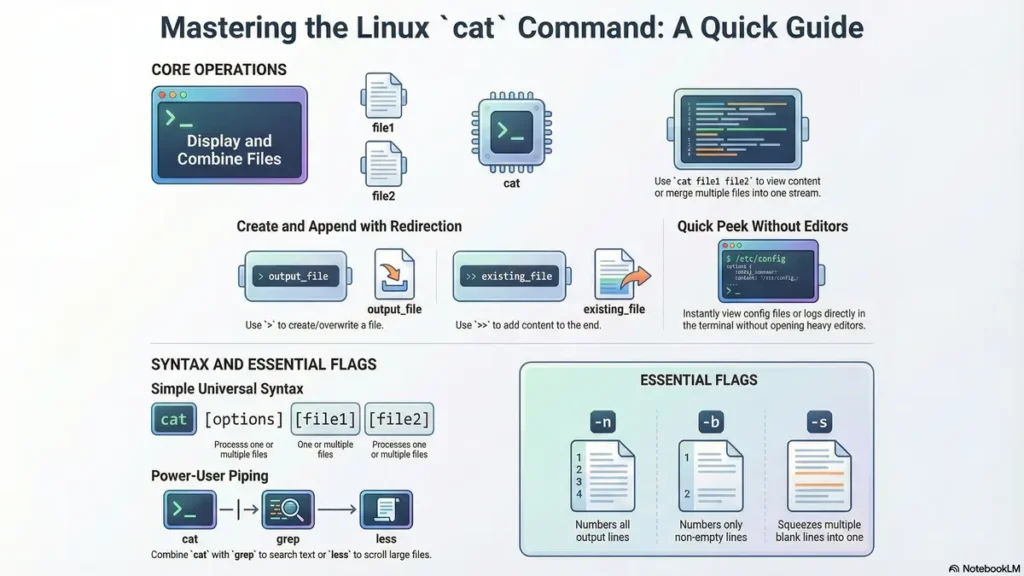
linux cat command is one of the most basic yet powerful tools for working with text files directly from the terminal, and it’s something every Linux user (from beginner to sysadmin) should know well.
cat stands for “concatenate” and is primarily used to display the contents of a file on the terminal screen. For example, if you have a file called notes.txt, running cat notes.txt will print its entire content right in the terminal, without opening any editor.
It’s the go‑to command when you just want to quickly peek inside a config file, log file, or script to see what’s inside.
Beyond just viewing one file, cat can also combine (concatenate) multiple files into a single output. For instance, cat file1.txt file2.txt will show the content of file1.txt followed by file2.txt in one continuous stream.
You can even use it to create new files, append text to existing ones, or redirect output to another file using shell redirection (>, >>) — making it super useful for scripting and automation tasks.
The linux cat command is an essential tool for anyone working with Linux. It helps you view, combine, and create files easily. This guide will explain the syntax, uses, and real‑world examples to help you master this powerful command.
Table of Contents
- What does cat command do in linux?
- How to use cat command in linux
- Commonly Used Options with Cat Command
- Tips to Use Linux Cat Command Efficiently
- 20 FAQs About the Linux Cat Command
- Conclusion
what does cat command do in the linux?
The cat command in Linux stands for concatenate. It reads files sequentially and outputs their content to the terminal or another file. It is commonly used to display file content quickly or merge files.
How to use cat command in linux
The general syntax is simple:
cat [options] [file1] [file2] ...You can use one or more files as input. The command outputs their contents in order.
Common Optios for linux cat command
The name cat is short for “concatenate.” It can be used to create files,
view files, or join multiple files together. Below are the flags used to modify its output.
- -n, –number
-
The above options in linux cat command Adds line numbers to each line of output starting with the number “1.”
Example:
1  First line
2
3  Third line
- -b, –nonblank-number
-
This option replaces the -n option’s behavior in linux cat command.
Example:
   First line
1  Second line with text
- -s, –squeeze-blank
-
Multiple blank lines are produced by multiple consecutive blank lines; linux cat command will enter everything but only one blank line) itself into a single blank space.
Example:
Text Block A

Text Block B
- -E, –ends
-
Each line ends with the character “$,” useful when one wishes to identify unusual whitespace that is not visible or identify whitespace that is at the end of a blank line.
Example:
Hello World$
This line has spaces at the end$
- -T, –tabs
-
Tab characters will be rendered as ^I. This functionality is helpful to debug files that require whitespace. This includes Python scripts, Makefiles, etc.
Example:
Header
^IIndented content
- -v, –nonprinting
-
This uses the ^ and M- notation to display control characters that can’t be printed, except that LFD and T are omitted; this helps locate hidden control characters.
- -A, –all
-
A “master” flag. It has the same result as using -v, -E, and -T together; this displays non-printing characters (including line endings and tabs) simultaneously.
- -e and -t
-
-e = -v -E (show nonprinting and line endings)
-t = -v -T (show nonprinting and tabs).
Quick Reference Summary for linux cat command
| Short Flag | Long Flag | Description |
|---|---|---|
-A |
--show-all |
Equivalent to -vET |
-b |
--number-nonblank |
Number non-empty lines only |
-e |
(none) | Equivalent to -vE |
-E |
--show-ends |
Display $ at end of lines |
-n |
--number |
Number all output lines |
-s |
--squeeze-blank |
Squeeze multiple blank lines into one |
-t |
(none) | Equivalent to -vT |
-T |
--show-tabs |
Show tabs as ^I |
-v |
--show-nonprinting |
Show non-printing characters |
20 Tips to Use Linux Cat Command Efficiently
The linux cat command is more than just a file viewer. By mastering these shortcuts and combinations, you can significantly speed up your command-line workflow.
- Create a New File: Use
cat > filenameto quickly create a file and start typing content directly from the terminal. - Append to a File: Use the double redirection operator
cat >> filenameto add text to the end of an existing file without overwriting it. - Merge Multiple Files: Concatenate several files into a single new one by running
cat file1 file2 file3 > combined.txt. - View Line Numbers: Use the
-nflag to display line numbers, making it easier to reference specific parts of a script. - Search with Grep: Filter file content instantly by piping output:
cat file.txt | grep "keyword". - Handle Large Files: Prevent long files from flooding your terminal by piping to a pager:
cat largefile.log | less. - Suppress Empty Lines: Clean up output by using
cat -sto “squeeze” multiple blank lines into one. - Identify Tab Characters: Use
cat -Tto show tabs as^I, which is helpful for debugging Python or Makefile indentation. - Display Line Endings: Use
cat -Eto show a$at the end of lines to find hidden trailing whitespace. - Show All Hidden Characters: Use the
-Aflag to see tabs, line ends, and non-printing characters simultaneously. -
Make a New File:
Typecat > filenamein the terminal, then press “Enter”. Type the content in the terminal. When finished, press “Ctrl-D” to save the file. -
Add to a File:
Typecat >> filenamein the terminal. Press “Enter” and type the content you want to add to the end of the existing content of the file. When finished, press “Ctrl-D” to save the file. -
Combine Files:
Divide the text files file1, file2 and file3 into the new text file combined.txt with the commandcat file1 file2 file3 > combined.txt. -
Display Line Numbers:
You can add line numbers by typingcat -n filenamein the terminal. -
Find Words with Grep:
You can usegrepto filter the contents of a file and type a keyword in the terminal with the commandcat filename | grep keyword. -
Prevent Large Files from Overwhelming the Terminal:
You can create a pipe for a long text file with big content to prevent your terminal from filling it up. Use the commandcat largefile.log | less. -
Suppress Empty Lines:
You can suppress multiple blank lines to one blank line in the output of your terminal by typingcat -sin the terminal. -
Detect Tabs in Text Files:
To display the tab character as^I, typecat -T filename. This will help you to debug indentation in both Python files and Makefile files. -
Show Trailing End of Line Characters:
Add$to the end of all lines withcat -Eto see where you’ve added trailing whitespace to your text files and make sure they are removed. -
Display All Non-Printable Characters:
Use the-Aoption incatto display tab characters, end-of-line characters and non-printable characters, all in one command. -
Display Numbered Non-Empty Lines In a File:
To show the number of lines that have text in them, and not the blank lines in between them, usecat -b filename. -
Display the First Few Lines In a File:
To show a small portion of the files, you can filter the output using head:cat filename | head. -
Display the Last Few Lines In a File:
To display the last few lines at the end of the output:cat filename | tail. -
Display the Contents of a File in Reversed Order:
Thetaccommand (cat spelled backwards) allows you to display the contents of the file backwards. -
Avoid The Use Of cat | grep:
Most commands take filename arguments directly. For better efficiency, usegrep keyword filenameinstead of pipingcatintogrep. -
Concatenate a file with stdout:
To display the contents of a file, and then wait to input data manually to the stream, usecat filename -. -
View All Control Characters In a File:
Usecat -vto display non-printing control characters. -
Delete All Contents Of a File:
You can delete all the contents of a file (truncate it) by using the command:cat /dev/null > filename. -
To Convert to Uppercase Or To Lowercase:
Pipe the output to thetrcommand:cat file | tr 'a-z' 'A-Z'. -
To Sort file contents:
Use thesortcommand to show the contents of a file sorted in alphabetical order:cat filename | sort. - What does the ‘cat’ command stand for in linux cat command?
It stands for ‘concatenate’, which means to link things together in a chain or series. - What does cat command do in linux?
Its most basic use is to display the entire content of a file directly in your terminal. - Can I use ‘cat’ to view hidden files?
Yes, if you know the exact name of the hidden file (which usually starts with a dot, like .myconfig), cat .myconfig will work. - Is linux cat command suitable for viewing very large files?
While it can, it is generally not recommended for very large files as it prints the entire content at once, which can flood your terminal. Tools like less or more are better for large files. - How do I create an empty file using linux cat command?
You can simply type cat > emptyfile.tx and then immediately press Ctrl + D. - What is the difference between > and >> with cat?
> (single greater-than) overwrites the destination file with new content. >> (double greater-than) appends content to the end of the destination file without deleting existing content. - Can linux cat command read from standard input (keyboard)?
Yes, when you use cat > filename, it reads what you type from the keyboard (standard input) until you press Ctrl+D. - How do I display line numbers for only non-empty lines?
Use the -b option: cat -b myfile.txt. - What does cat -s do?
The -s option “squeezes” or compresses multiple consecutive blank lines into a single blank line in the output. - How can I see tab characters with linux cat command?
Use cat -T (or –show-tabs) to display tab characters as ^I. - Can linux cat command delete files?
No, cat is for viewing, creating, or combining file contents. It does not have a delete function. You would use rm for that. - Is ‘cat’ useful for scripting?
Yes, cat is often used in shell scripts to quickly output file contents or feed data into other commands. - How do I combine the contents of three files into a new fourth file?
You would use cat file1.txt file2.txt file3.txt > combined.txt. - Does ‘cat’ modify the original files?
No, cat only reads from the input files and writes to standard output (or a new file if you use redirection). It never changes the source files. - What does cat -E do?
The -E option displays a dollar sign ($) at the end of each line, including blank ones, which can be useful for debugging line endings. - Can I use wildcards with ‘cat’?
Yes, you can use wildcards. For example, cat *.txt would display the contents of all files ending with .txt in the current directory. - How is cat different from more or less?
cat displays the entire file at once. more and less are pagers, meaning they display content one screen at a time, allowing you to scroll through large files. - Why might ‘cat file | grep text’ be preferred over ‘grep text file’?
While grep text file is more direct, cat file | grep text is sometimes used for consistency in pipelines or when the output of cat is first processed by another command before grep takes over. - Can ‘cat’ be used to copy files?
While technically cat source > destination will copy a file, it is not the primary or most efficient way. The cp command is designed specifically for copying files. - Are there any security concerns with using ‘cat’?
The command itself is safe. However, if you cat a sensitive file in a shared terminal, its content might be visible to others. Always be mindful of what you display.
The cat command is one of the most versatile tools in the Linux toolkit. Beyond simply viewing text, it can be used for file creation, merging, and advanced debugging when paired with other utilities.
By combining these techniques, you can transform cat from a simple display tool into a powerful text-processing utility.
20 FAQs About the Linux Cat Command
Conclusion
Mastering the linux cat command is crucial for efficient Linux file management. It is a versatile tool that is simple yet powerful for viewing and manipulating files. Its simplicity makes it a favorite for quick tasks, while its ability to combine with other commands makes it indispensable for complex operations.
To master your workflow, it is essential to understand basic linux commands like cat, ls, and grep.
Stay Connected with My Coding Journey
Don’t let scammers stop your professional growth. Join our community for more tech safety tips!
For more tutorials and guides, check out: CodingJourney.co.in