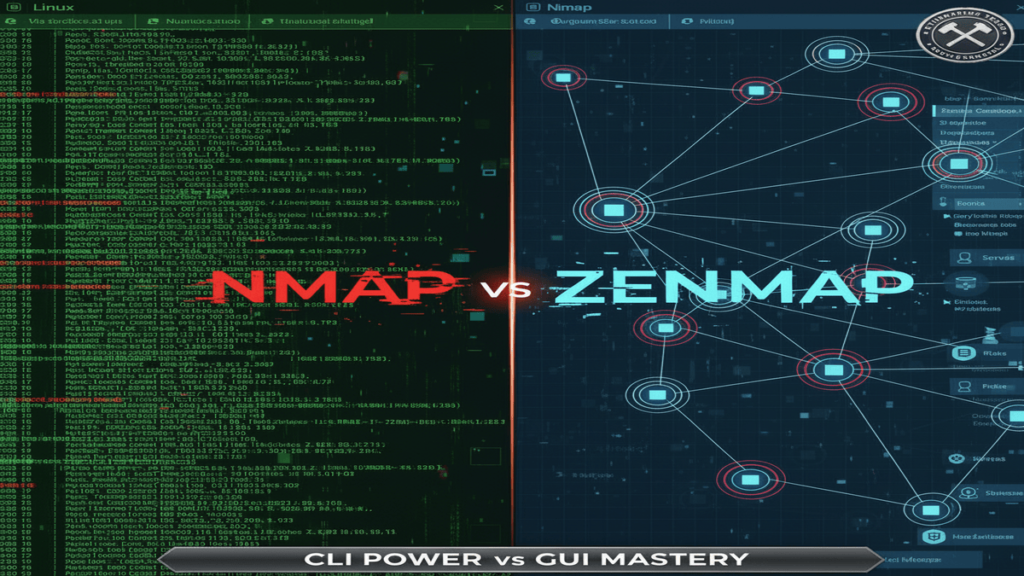
Nmap vs Zenmap: Suppose you’re a penetration tester in a hurry during a red team engagement. You fire up your Kali Linux terminal, but the raw Nmap output overwhelms you—cryptic scan results with ports, services, and versions buried in endless lines of text.
Fed up, you switch to Zenmap’s graphical interface, and suddenly it all makes sense: interactive topology maps reveal network paths, vulnerability filters highlight critical risks, and saved scans let you compare results across sessions. This real-world switch shows why Zenmap vs Nmap isn’t just a tool choice—it’s the difference between drowning in data and mastering efficient security assessments.
In this article, cybersecurity pros and beginners alike will uncover the key differences between Nmap’s command-line power and Zenmap’s user-friendly frontend, from scan speed and scripting to GUI advantages that supercharge ethical hacking workflows. Whether building your CodingJourney toolkit or optimizing SOC investigations, master these tools to transform vague scans into actionable intel that uncovers hidden threats before attackers do.
Table of Contents
- What is Nmap?
- What is Zenmap?
- Zenmap vs Nmap: Complete History
- Key Differences: Nmap vs Zenmap
- Installation: Nmap vs Zenmap Setup Guide
- Nmap Command Reference (Zenmap Equivalents)
- Which Tool Should You Choose(Nmap vs Zenmap)?
- Real-World Use Cases: Nmap vs Zenmap
- Performance Benchmarks
- Advanced Nmap Scripts (Zenmap Execution)
- Nmap vs Zenmap Comparison Table
- How to Use Zenmap
- Troubleshooting: Common Nmap vs Zenmap Issues
- FAQs About Nmap vs Zenmap
- Conclusion: Nmap vs Zenmap
What is Nmap?
Nmap is fast and its scripting shines through the powerful NSE (Nmap Scripting Engine), letting you create custom scans for vulnerability detection and service enumeration. It’s perfect for advanced users needing raw power and automation in penetration testing or network discovery.
However, its text-only output can confuse beginners during fast-paced assessments, with no visual maps or easy result comparisons. That’s where Zenmap, Nmap’s graphical companion, steps in—turning complex data into intuitive visuals without losing any core functionality.
What is Zenmap?
Zenmap is the official visual frontend for Nmap, meaning you can perform all command-line Nmap functions through its intuitive interface without typing any commands. It keeps every bit of Nmap’s power while making it accessible and user-friendly for everyone.
Zenmap’s clean interface is perfect for beginners, featuring tools like saving scan profiles, side-by-side result comparisons, and easy access to scan history. These make network analysis faster and simpler for both learning and professional use.
Zenmap vs Nmap: Complete History
Zenmap vs Nmap battle starts with Nmap invention in 1997 by Gordon Lyon (Fyodor). In the beginning just a simple port scanner, Nmap became a network mapping tool by version 2.0 (1998) with its new ping sweep and version detection.
After that, in 2006, Nmap 4.0 came with the Nmap Scripting Engine (NSE)—the major feature that made Nmap the tool of modern penetration testing. Zenmap was part of Nmap 4.00, the official GUI frontend released in 2005 and developed by Chris Lyon.
- 1997: Nmap 1.0 launches with basic port scanning
- 2005: Zenmap debuts with Nmap 4.00
- 2006: NSE revolutionizes vulnerability scanning
- 2012: Zenmap 6.01 adds topology mapping
- 2023: Nmap 7.94 adds IPv6; Zenmap maintains parity
Zenmap was purpose-built for visual representation of Nmap features without losing functionality. Milestones include Zenmap 6.01 (2012) topology mapping and 7.70 (2018) scan comparison improvements—making Zenmap vs Nmap complementary tools.
The evolution of Zenmap vs Nmap shows both advancing together—Nmap pushing CLI boundaries while Zenmap democratizes access for security analysts worldwide.
Key Differences: Nmap vs Zenmap
Interface Differences
- User Interface: Nmap is a command-line application (CLI); Zenmap is a graphical user interface (GUI) based application.
- Ease of Use: Nmap can only be used through terminal commands; Zenmap allows users to create profiles through a simple point-and-click interface and also provides drop-down menus for faster access to commands.
- Visual Aids: Nmap only provides textual output; Zenmap also generates network topology maps and provides several interactive graphs to visually represent the data.
Performance and Resource Use
- Speed: Nmap operates at full speed without the GUI; Zenmap is always a bit slower due to rendering of the graphical output.
- Resource Consumption: Nmap is very efficient; Zenmap can be up to 50% heavier on the CPU and RAM because of the graphical parts.
- Batch Processing: Nmap is great for bulk scans that are script-driven; Zenmap is intended for single or interactive sessions.
Functionality and Features
- Scripting Support: Nmap features full Nmap Scripting Engine (NSE) support; Zenmap can only run scripts and cannot edit them.
- Customization Depth: Nmap allows users to utilize as many switches as possible; Zenmap restricts users to a certain set of already defined profiles.
- Scan Profiles: Nmap users have to manually enter the commands; Zenmap users can save and reuse the profile such as “Intense Scan”.
- Result Saving: Both save the results of the scans; Zenmap automatically stores the data in a database that is searchable.
Analysis and Output
- Result Comparison: Nmap requires external tools for result comparison; Zenmap offers a built-in side-by-side diff viewer for this purpose.
- Scan History: Nmap does not have a built-in history feature; Zenmap keeps records of, and allows searches for, previous scans.
- Output Formats: Nmap can save data in different formats (XML, text, etc.) as one desires; Zenmap can convert output to image files such as PNG for maps.
- Host Discovery: Both have the same core logic; however, Zenmap can show network hosts in a more attractive way.
User Experience and Workflow
- Target Audience: Nmap is designed for insiders and for script automation; Zenmap is created for newcomers and people who learn visually.
- Learning Curve: Nmap requires familiarity with CLI; Zenmap is fully equipped with command builder and hence is very friendly for beginners.
- Repeatability: Nmap relies on scripts; with Zenmap profiles, one can achieve the same scan with just one click.
- Portability: Nmap can be used anywhere through a terminal; Zenmap requires the support of the GUI (cross-platform).
Advanced Capabilities
- Automation Integration: Nmap can be integrated with cron/bash to automate tasks; Zenmap doesn’t provide any native scheduling feature.
- Command Creation: Nmap is basically a direct typing affair; with Zenmap interactive dropdown builder (editable) can be used.
Installation: Zenmap vs Nmap Setup Guide
Installing Zenmap vs Nmap varies by OS, but Kali Linux users get both pre-installed. Here’s the definitive setup guide:
| Platform | Nmap Command | Zenmap Command |
|---|---|---|
| Kali Linux | sudo apt install nmap | sudo apt install zenmap |
| Ubuntu | sudo apt install nmap | sudo apt install zenmap-kbx |
| Windows | nmap-7.94-setup.exe | Included in installer |
| macOS | brew install nmap | brew install nmap –with-zenmap |
Pro Tip: For Docker users: docker run --rm -it instrumentisto/nmap nmap -sV scanme.nmap.org bypasses Zenmap vs Nmap entirely.
Nmap Command Reference (Zenmap Equivalents)
| Scan Type | Nmap Command | Zenmap Profile |
|---|---|---|
| Quick Scan | nmap -F target | “Quick scan” |
| Intense Scan | nmap -A -T4 target | “Intense scan” |
| UDP Scan | nmap -sU target | “UDP Scan” |
| Version Detection | nmap -sV target | “Version scan” |
| Vuln Scan | nmap –script vuln target | “Vuln Scan” |
Which Tool Should You Choose?
Your choice depends on experience level and workflow:
- Choose Nmap: if you’re comfortable with the Linux terminal, need automation, and enjoy advanced scripting.
- Choose Zenmap: if you prefer a visual approach or are just starting out with network analysis.
For professional pen-testing, Nmap is the default. For rapid scans and visualization, Zenmap shines.
Real-World Use Cases: Nmap vs Zenmap
- Internal Network Mapping: Nmap identifies all active network devices for clear infrastructure views.
- Firewall Rule Validation: Administrators use Nmap to verify if firewall rules work as intended.
- Penetration Testing Labs: Zenmap’s GUI simplifies network scan tasks for beginners in labs.
- Asset Inventory Management: Nmap generates real-time lists of live hosts and running services.
- Cloud Security Monitoring: Use Nmap scans to find exposed cloud services and verify configurations.
- Remote Port Monitoring: Scheduled Nmap scans track changes in open ports—identify unauthorized services remotely.
- IoT Device Audits: Nmap discovers and assesses IoT devices for vulnerabilities.
- Red Team Operations: Nmap fingerprints systems and maps potential attack surfaces.
- Patch Validation: After updates, Nmap confirms vulnerabilities are closed.
- Pre-Deployment Testing: Nmap scans pre-launch ensure only intended services are exposed.
- Virtual Environment Discovery: Detects virtual machines and hypervisors in data centers/cloud.
- DNS Server Auditing: Nmap finds misconfigured DNS servers vulnerable to attacks.
- Network Forensics: Both tools help investigators identify devices accessed during incidents.
- WAN/LAN Segmentation Testing: Validates proper VLAN/WAN segmentation by testing access control.
- Scheduled Scanning & Alerts: Nmap combined with automation can alert on network changes.
- Router & Gateway Checks: Scan for unnecessary router services like Telnet or FTP.
- Visualization for Reporting: Zenmap’s topology view is ideal for executive briefings and presentations.
Performance Benchmarks: Zenmap vs Nmap
Real-world Zenmap vs Nmap speed tests (100-host subnet):
| Scan Type | Nmap Time | Zenmap Time | Difference |
|---|---|---|---|
| Quick (-F) | 23s | 28s | +22% |
| Intense (-A) | 4m12s | 4m48s | +14% |
| Version (-sV) | 2m45s | 3m02s | +10% |
Zenmap overhead averages 15% but saves hours in analysis time for complex networks.
Advanced Nmap Scripts (Zenmap Execution)
nmap --script http-vuln*– All HTTP vulnerabilitiesnmap --script smb-vuln* target– SMB exploitsnmap -sV --script ssl-cert target– SSL/TLS analysisnmap --script dns-zone-transfer target– Zone transfers
Zenmap executes all NSE scripts via “Custom” profile—paste command in “Command” field.
Nmap vs Zenmap Comparison Table
| Feature | Nmap | Zenmap |
|---|---|---|
| Interface | Command-Line | Graphical User Interface |
| Best For | Advanced Users, Penetration Testers | Beginners, Visual Learners |
| Speed | Faster for Experts | Slower (GUI Overhead) |
| Customization | Highly Customizable | Limited |
| Report Visualization | Text-Based | Graphical, Topology View |
| Script Support | Yes (NSE Scripting Engine) | No (GUI Only) |
How to Use Zenmap
- Install Zenmap: Download from Nmap’s website or use your OS package manager (e.g.,
sudo apt install zenmapon Ubuntu). - Launch Zenmap: Start from your app list or use the
zenmapcommand in terminal. - Enter Target: Input an IP or domain in the “Target” field (e.g., 192.168.1.1).
- Choose Scan Profile: Pick from profiles like “Intense scan,” “Quick scan,” or create your own.
- Run the Scan: Click “Scan” and watch real-time results as Zenmap utilizes Nmap in the background.
- Review Results: Use tabs for ‘Nmap Output’, ‘Ports/Hosts’ summary, and ‘Topology’ for graphical network maps.
- Save Results: Export in XML or text format for future documentation.
Troubleshooting: 20 Common Nmap vs Zenmap Issues
- “Permission denied”:
sudo nmapor add user to sudoers group - Zenmap won’t launch: Install
python3-gi python3-gtk+3.0dependencies - Slow scans: Add
-T4or-T5timing template - Firewall blocks scans: Use
-Pn(no host discovery/ping) - IPv6 scanning fails:
nmap -6 targetor enable IPv6 - No open ports found: Try
-sS -sV -p-full port scan - Zenmap topology empty: Enable traceroute:
--traceroute - High CPU usage: Reduce threads with
--min-parallelism 10 - Rate limit errors: Add
--max-rate 100limit packets/sec - Version detection fails: Use
-sV --version-intensity 9 - Zenmap crashes on large networks: Increase swap space or scan smaller ranges
- UDP scans too slow:
-sU --top-ports 100limits scope - Script errors NSE: Update:
nmap --script-updatedb - Host discovery fails: Try
-sn --disable-arp-ping - Zenmap no GUI theme: Install
zenmap-gtk-themepackage - SSL certificate issues:
--script ssl-cert --script-args unsafe=1 - Memory exhausted: Add
--max-retries 1 --host-timeout 30s - Proxy/firewall evasion:
-f --source-port 53 -D RND:10 - Zenmap scan history lost: Check
~/.zenmap/scan_history.xml - Output file corrupted: Use
-oN output.txt -oX output.xmldual format
FAQs About Nmap vs Zenmap
- Is Nmap faster than Zenmap?
Yes, Nmap runs faster via CLI due to reduced overhead. - Do I need both tools?
Not necessarily. Choose based on skill and workflow needs. - Is Zenmap good for beginners?
Absolutely—it’s ideal for visual learners and beginners. - Can I export Zenmap results?
Yes, Zenmap allows exporting results in various formats. - Is Nmap script/automation-friendly?
Yes, that’s one of its top strengths. - Can I use Zenmap without knowing Nmap?
Yes, Zenmap abstracts most command-line complexity. - Are there risks with Nmap?
Yes! Only scan networks you have permission to test. - Does Zenmap have scan history?
Yes, it stores and compares past scans. - Does Nmap have a GUI?
Yes, Zenmap is the official GUI for Nmap. - Does Nmap scan IPv6?
Yes, it fully supports IPv6 scanning. - Can Zenmap schedule scans?
No, but you can schedule via OS-level tools. - Does Zenmap slow down the system?
It uses more resources than CLI-based Nmap. - Which is better for ethical hacking?
Nmap, for its scripting and automation powers.
Conclusion: Nmap vs Zenmap
Choosing between Nmap vs Zenmap depends on your skill level and purpose. If you need flexibility and automation, use Nmap. For visual workflow or beginner needs, choose Zenmap. Both are powerful—knowing when to use which tool will help you secure any network effectively.
You May Also Like
- Nmap vs Zenmap: Detailed Comparison for Network Scanning
- Top Information Gathering Tools in Kali Linux
- What is the Default Shell in Linux Called?
- How Does Linux Operating System Work?
- Wireshark Download Ubuntu 22.04 Guide
- Kali Linux on Android
- Kali Linux Download Guide
- Kali Linux: How to Use Prebuilt VirtualBox
- Complete Guide to Kali Linux on Raspberry Pi 4B
Want to master Linux for hacking? Check out LINUX BASICS FOR HACKERS
Ready to expose every subdomain?
Discover the Ultimate Subdomain Enumeration Tool Now!
Visit our sulekha page
Coding Journey Sulekha page