
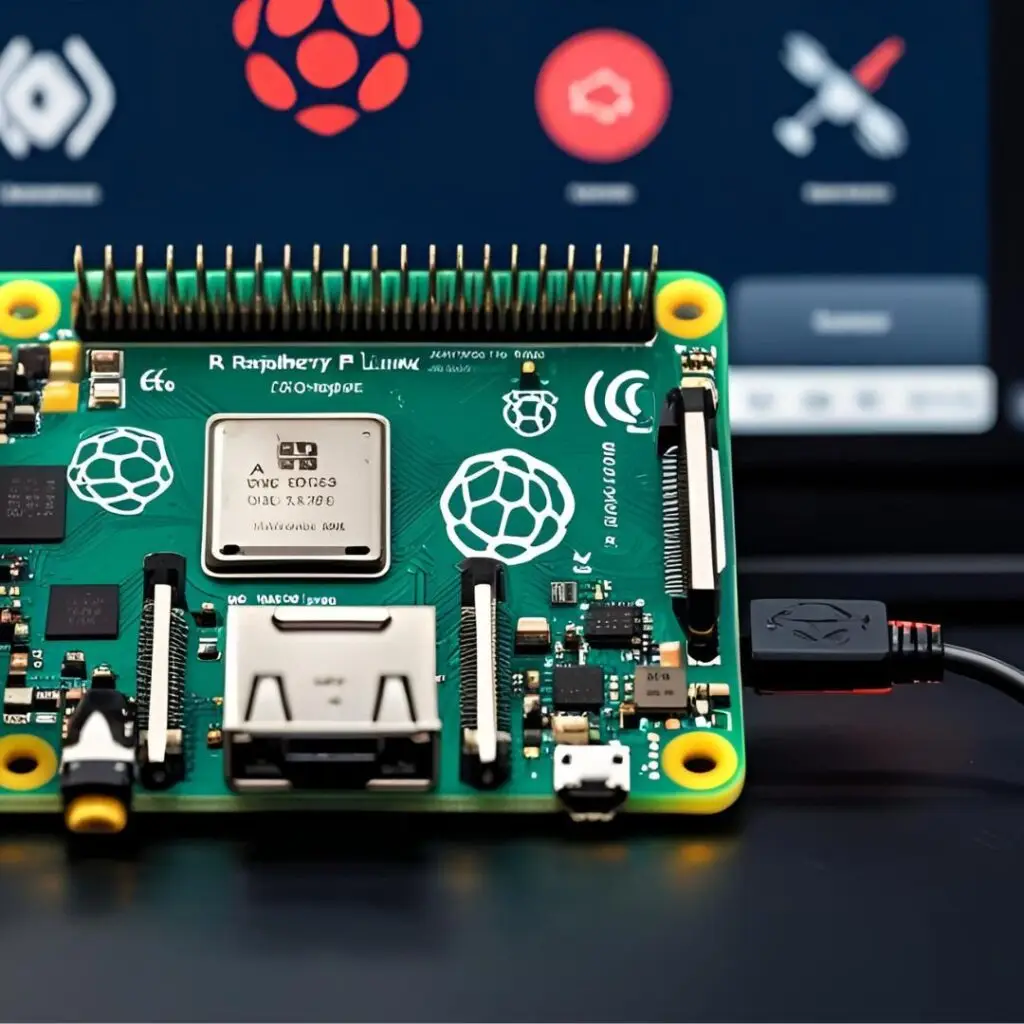
- Introduction to Kali Linux on Raspberry Pi 4B
- Why Choose Raspberry Pi 4B for Kali Linux
- Required Hardware
- Download the Kali Linux Image
- Flash the Image to SD Card
- First Boot and Initial Setup
- Optimize Kali for Raspberry Pi Performance
- Connect to Wi-Fi and Enable SSH
- Essential Tools to Install
- Tips for Smooth Experience
- 20 FAQs on Kali Linux on Raspberry Pi 4B
- Conclusion
Introduction to Kali Linux on Raspberry Pi 4B
Kali Linux is a top choice for penetration testing and ethical hacking. When run on the compact, powerful Raspberry Pi 4B, it becomes a mobile cybersecurity powerhouse. This guide will walk you through setting up a lightweight, portable hacking lab with Kali on the Pi 4B.
Why Choose Raspberry Pi 4B for Kali Linux
The Raspberry Pi 4B strikes a balance between power and portability. With its quad-core CPU and up to 8GB of RAM, it supports demanding Kali tools efficiently. Features like USB 3.0, dual display outputs, and fast networking enhance its suitability for penetration tests.
Required Hardware
- Raspberry Pi 4B (2GB, 4GB, or 8GB RAM variants)
- MicroSD card (minimum 32GB, Class 10 recommended)
- Micro HDMI cable for display
- USB keyboard and mouse
- Monitor
- Internet access (Ethernet or Wi-Fi)
- Power supply (5V 3A recommended)
Download the Kali Linux Image
Go to the official Kali Linux website and navigate to the Kali ARM Images section. Download the specific Raspberry Pi 4 image suitable for your hardware.
Flash the Image to SD Card
Use tools like Balena Etcher or Raspberry Pi Imager to flash the downloaded Kali image onto your microSD card. The process usually takes several minutes to complete.
First Boot and Initial Setup
- Username: kali
- Password: kali
After initial login, change the default password and run sudo apt update && sudo apt upgrade -y to keep the system current.
Optimize Kali for Raspberry Pi Performance
Disable unnecessary background services and use a lightweight desktop environment like XFCE. Expand the filesystem with sudo apt install raspi-config and then sudo raspi-config, choosing “Expand Filesystem” followed by a reboot.
Connect to Wi-Fi and Enable SSH
Edit the Wi-Fi configuration at /etc/wpa_supplicant/wpa_supplicant.conf with your network credentials. Enable SSH with:
sudo systemctl enable ssh
sudo systemctl start ssh
Access your device remotely via SSH tools like PuTTY or terminal clients.
Essential Tools to Install
- Nmap
- Metasploit Framework
- Wireshark
- Aircrack-ng
- Hydra
Install additional tools with sudo apt install <toolname> and keep them updated regularly.
Tips for Smooth Experience
- Use heat sinks or active cooling fans to prevent overheating
- Backup the SD card regularly to prevent data loss
- Ensure a stable, powerful power supply to avoid CPU throttling
- Store logs and data on an external USB drive for safekeeping
20 FAQs on Kali Linux on Raspberry Pi 4B
- Can Raspberry Pi 4B run Kali Linux smoothly? Yes, with up to 8GB RAM, it supports Kali efficiently.
- What is the recommended microSD card size? At least 32GB, Class 10 or better for fast speeds.
- How do I flash the Kali image on the SD card? Use Balena Etcher or Raspberry Pi Imager.
- Can I use Kali Linux headlessly? Yes, by configuring Wi-Fi and enabling SSH for remote access.
- What are the default login credentials? Username: kali, Password: kali (change after first login).
- Can I expand the filesystem on Kali? Yes, using the raspi-config tool.
- Do I need cooling solutions? Recommended for heavy or prolonged use to prevent throttling.
- How to update Kali Linux? Run
sudo apt update && sudo apt upgrade -y. - Are all Kali tools available on Raspberry Pi? Most popular tools are included, but some may be limited.
- Can I connect multiple monitors? Pi 4 supports dual micro HDMI displays.
- What power supply suits the Pi 4B? 5V 3A power supply is recommended.
- Is Ethernet faster than Wi-Fi on Pi 4? Generally, yes, Ethernet offers more stable connections.
- How do I secure my Kali Pi installation? Change default passwords and keep system updated.
- Can I install additional Linux packages? Yes, through apt package manager.
- Is it possible to dual-boot other OSes? Yes, with proper bootloader setup.
- Where to find support? Kali forums, Raspberry Pi community, and Coding Journey website.
- How long does the initial setup take? Usually around 30 minutes to an hour depending on updates.
- Are USB 3.0 ports beneficial? Yes, for faster data transfer.
- Can I use Kali on Pi 3 or older models? Yes, but performance will be lower.
- Are there ARM images for Kali besides Pi 4B? Yes, for various ARM-based devices including Pi 3 and Pi 5.
Conclusion
Kali Linux makes the Raspberry Pi 4B a powerful portable penetration testing device. With simple setup steps, hardware optimizations, and essential tools, it suits cybersecurity professionals and enthusiasts alike. Begin your mobile hacking journey today on this versatile platform.
Penetration Testing Tools Corner
For official Kali Linux downloads and documentation, visit the Kali Linux ARM Downloads page.


