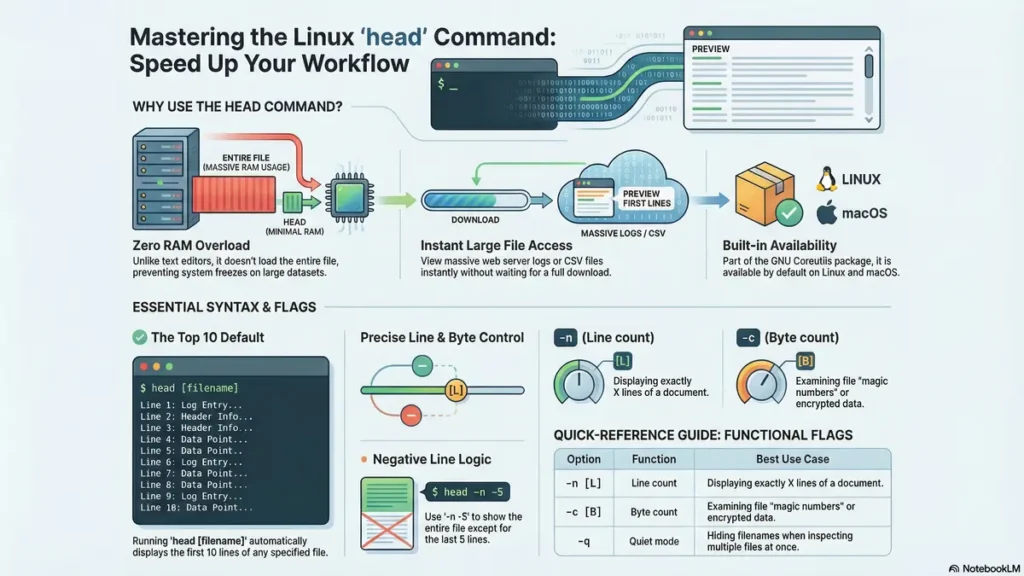
head command in linux allows users to see the first N number of lines of a specified file quickly. For example, imagine if you send a huge amount of data (logs) produced by the web server; you only want to see the results of the latest requests without having to wait for the entire file to be downloaded.
Using the head command is a great way to quickly view files that are too large for your editor to handle! you’ll discover simple methods for viewing log files, examining CSV headers and quickly confirming that your data is Correct.
By the time you’ve completed this article you’ll be able to identify problems in your files before they become major difficulties.
Table of Contents
- What does head command do exactly?
- How head command extracts file beginnings
- Basic ways to use head command
- head command in linux with examples
- Preview log files quickly
- Check CSV and data headers
- Real examples from daily work
- how to use head command in linux with pipes and tools
- Fix common problems
- Alternative preview methods
- Head Command Benefits: Questions Answered
What does head command do exactly?
The primary purpose of head command in linux is to allow users to preview a document. It allows users access to a few lines of the first page (the “head”) of a document.
It does not load the entire document into your computer’s RAM, that is why it is faster and requires less memory than a traditional text document editor.
For example, some files, when opened in a standard text editor, may be millions of bytes large, and thus, could take hours to open, as well as freeze or crash your computer during the process.
The utility created by GNU coreutils solves this problem by only reading the first few bytes of a document and stopping once it reaches the specified number of lines to read.
In essence, it acts as a “headline” for the document, allowing users a quick overview of the most important information.
The utility is part of the GNU Coreutils package, which is typically included with any version of the GNU Operating System, so users should have this utility available by default.
How head command extracts file beginnings
The program identifies “newline” characters in a file and counts how many times they appear.
The program counts ten “newline” characters. Once the program reaches the tenth “newline,” it stops counting and displays the total on the screen (Terminal).
The counting is performed in a straight line from the start of the file (byte zero) onward. This is the reason for the speed of this tool—as opposed to other tools that require indexing of the entire file prior to counting the “newline” characters.
If a file contains fewer than ten lines, the program displays the entire contents of the file—it does not produce an error for having too few lines in a file.
You can modify the default functionality of this tool so that it counts bytes rather than lines. This is helpful for counting in files such as binary or encrypted files that do not use standard line breaks.
Basic ways to use head command in linux
To begin using the head command in Linux, the easiest way is to write the name of the command and then specify the file to be displayed. For example, typing the command head myfile.txt.
In this example, when you type the command, it will output the top ten lines from “myfile.txt” directly onto your display monitor. For many new users of the head command, this is the most frequently used method of interacting with the command-line utility.
However, if you want to display more or fewer than ten lines, you simply append the desired number to the command. Thus, if you wanted to display only the top five lines, you would type head -n 5 myfile.txt.
To access the same five top lines can also use a shorthand method to speed up the process. Therefore, if you wanted to see the top five lines in this situation, you could have simply typed head -5 myfile.txt.
Furthermore, you may wish to view the top lines of your files simultaneously; if you enter the names of two files into the command line as arguments, then you will be able to view the top of each file with a brief heading separating them.
head command in linux with examples
While the tool is simple, it has a few powerful flags that help you customize your output. These options make it a versatile part of any workflow.
| Option | Function | Best Use Case |
|---|---|---|
| -n | Line count | Specifying exactly how many lines to display. |
| -c | Byte count | Reading a specific amount of raw data or characters. |
| -q | Quiet mode | Hiding filenames when checking multiple files. |
| -v | Verbose mode | Always showing filenames, even for a single file. |
| -z | Zero terminated | Processing files where lines end in NUL instead of newline. |
One interesting feature of the head command in Linux is the negative line count. If you use -n -5, it shows everything except the last 5 lines.
This “inverse” logic is helpful when you know a file has a footer or a signature at the end that you want to ignore during your analysis.
Preview log files quickly
The logs created are very important for the system administrator. These documents will contain comprehensive records of everything from web traffic to errors that would prevent access to user resources.
The most direct way to determine the cause of any system failure is to look at the beginning of the logs. For instance, use the head command in Linux as a diagnostic tool.
If you want to know whether or not the computer has started this morning, run “head /var/log/syslog” and scroll through millions of other records.
Another use of the head command is to monitor your rotated logs. The head command will allow you to quickly see if there was any recorded data from all of the old log files.
The head command with the ‘-n 20’ option can also be used to find specific timestamps. This makes it very easy to know exactly when a server was rebooted, or a service was restarted.
Check CSV and data headers
You may find CSV files where there are hundreds of columns as a data scientist. The “Header” defines all the data for these files, with the first line containing the header.
By typing in the command line head -n 1 filename.csv, you can quickly see which columns are included.
It’s much faster than loading into an application like Excel because you can quickly determine whether the layout of the data meets your expectations.
If your column data is delimited by commas and appears to be a little jumbled up, you could pipe the contents to a formatter to render it clearer when viewed on-screen.
Also by checking the top of the file you can learn about any unwanted information, such as blank lines or incorrect parts of the file, that would appear prior to the real data.
Real examples from daily work
Imagine that you have a directory full of shell scripts (.sh files), and you do not know what each of the scripts does just by looking at its name. To help identify the purpose of the scripts, you want to view only the top three lines in each of the scripts because these will contain the shebang (#!/bin/bash or #!/bin/sh) and a short comment that describes what the script does.
In order to accomplish this task, you could use:
head -n 3 *.sh (this will list the first 3 lines of all scripts).
You may also want to perform another common task when working with unknown file types: Check the first few bytes of the unknown file’s data and determine what type of file it is. To check an unknown file’s data, most of the time you will find that the first two to four characters (known as the “magic number”) will indicate what type of file it is.
head -c 16 filename will show you the first 16 bytes of a file.
Head also is often used by developers for confirmation that the build process created the desired output file. If the build process was unsuccessful, the resulting output file will be empty.
how to use head command in linux with pipes and tools
When you utilize the head command with the pipe (|) operator between two or more commands, you will then be able to realise its maximum potential with respect to the command’s capabilities.
To obtain the five largest files in a directory or folder, you can combine ls and sort commands and pipe that output into head -n 5.
You can also similarly combine head with grep; if you are searching for a specific word but only wish to receive the first three occurrences, the output from that grep command can be piped directly into head.
Using both the head and tail command is another common way to achieve what people colloquially refer to as ‘slicing’ a file by looking at individual lines located in the centre of that file.
For example, if you want to reference line #’s ten (10) through fifteen (15) of a particular file, you would pipe the “head -n 15” output of the file into tail -n 6. Otherwise, you may simply issue the command tail -n 15 filename | more and page through a file’s content, pausing after each page (which consists of twenty (20) lines).
Fix common problems
If you try to access a file using this utility and get an error stating “Permission Denied”, then that file has been marked as either Read or Write Protected by its owner.
You can use the same command by adding “sudo” in front of it, then you will have temporary access rights for administrative purposes only (to read the contents) of that specific file, otherwise if it has a read-only attribute, you will not be able to access it.
Another frequent issue is noticing gibberish characters appear in place of text; this occurs when using the head command in the Linux OS environment on binary-type files, for example compiled executable programs or enciphered data.
Binary format documents do not contain any human-readable data. This is how you can view this data accurately using the -c option.
If at any point you notice that the utility isn’t displaying output, first verify that there is actual content by executing the ls -l command.
Alternative preview methods
While this tool is great for the beginning of a file, tail is its natural partner for looking at the end of a file.
If you want to read a file and be able to scroll up and down, less is a better choice. It doesn’t load the whole file but lets you navigate it.
For files that are updated in real-time, like live server logs, tail -f is more useful because it keeps the connection open as new lines are added.
If you need to search for specific text patterns while previewing, grep is the industry standard for filtering through data effectively.
However, for a simple, fast, and no-frills look at the top of a document, the head command in Linux remains the most efficient choice.
Head Command Benefits: Questions Answered
1. How many lines does it show by default? It displays the first 10 lines of a file if you don’t specify a number.
2. Can I use it on multiple files? Yes, you can list many files, and it will show the top lines of each one with a header.
3. How do I see only the first line? Use the -n 1 option to extract just the header or first entry.
4. What is the difference between -n and -c? The -n option counts lines (sentences), while -c counts raw bytes (individual characters).
5. Can I hide the filename headers? Yes, use the -q (quiet) flag when you are looking at multiple files at once.
6. Does the head command in Linux work on Mac? Yes, the terminal in macOS is based on Unix and includes the same utility.
7. How do I see all lines except the last few? Use a negative number with the -n flag, such as -n -10.
8. Is there a GUI version? Most file managers have a “quick look” or “preview” feature that performs a similar function visually.
9. Can it read input from a keyboard? Yes, if you run it without a filename, it will wait for you to type text and then show the top of that.
10. How do I save the output to a file? Use the > symbol, like head file.txt > snippet.txt.
11. Can it show the first few characters of a word? Yes, by using the -c flag with a small number like 5 or 10.
12. Why is the head command in Linux so fast? Because it stops reading as soon as it reaches the requested line count, saving disk I/O.
13. Can it handle non-English characters? Yes, as long as your terminal is set to the correct encoding (like UTF-8), it will show them correctly.
14. Is it better than using cat? Yes, because cat dumps the whole file, which can overwhelm your terminal screen.
15. Can I use it to preview images? It will show the raw code of the image, which looks like gibberish, but it won’t break anything.
16. How do I see the first 1KB of a file? Use the -c 1K option to read exactly 1024 bytes.
17. Can it be used in scripts? Absolutely, it is a core tool for shell scripting and automation tasks.
18. What is the “verbose” flag for? The -v flag ensures that the filename is always printed above the content.
19. Can I pipe a website into it? Yes, you can use curl to fetch a webpage and pipe it into this tool to see the HTML header.
20. Does it support long-form options? Yes, you can use --lines=5 instead of -n 5 for better readability in scripts.
Want to go deeper? Check out our linux basic commands cheat sheet for practical examples.
Stay Connected with My Coding Journey
Don’t let scammers stop your professional growth. Join our community for more tech safety tips!
For more tutorials and guides, check out: CodingJourney.co.in