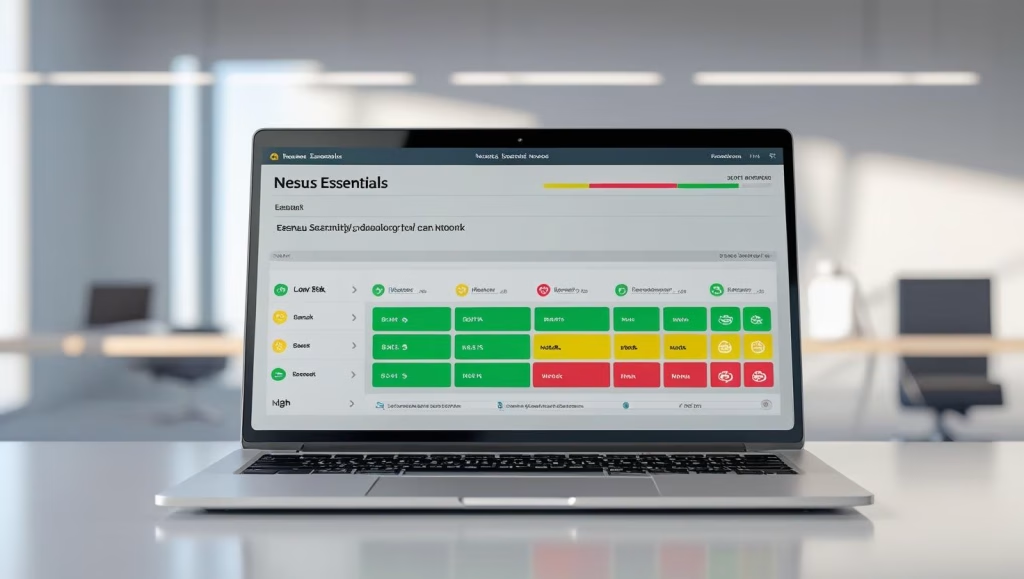
Introduction:how to Use Nessus Essentials
Want to learn how to use nessus essentials to strengthen your Linux system’s security?
Want to strengthen your Linux system’s security using Nessus Essentials? Nessus Essentials is a powerful, free vulnerability assessment tool
that helps you detect security weaknesses early, allowing you to address them before they become serious threats.
This resource provides Linux professionals with detailed instructions for installing, configuring, scanning and interpreting Nessus results with ease.
Overview of Nessus Essentials
Nessus Essentials Guide is Tenable’s complimentary edition of their acclaimed vulnerability assessment tool, perfect for personal labs or smaller network environments.
Supporting up to 16 IPs, it’s a valuable solution for learners and small business administrators alike.
The software delivers comprehensive vulnerability scans, compliance checks and system audits along with actionable remediation advice.
Its intuitive interface and dependable scanning engine make it especially accessible for newcomers.
Why Choose Nessus Essentials
Mastering Nessus provides foundational knowledge for detecting and resolving weaknesses within your IT infrastructure.
Its swift scanning processes and granular reporting are trusted by security practitioners worldwide.
Linux administrators benefit from its ability to proactively detect and address potential threats.
Free licensing, straightforward setup and versatile scan options make it an excellent tool for hands-on security work.
Installing Nessus on Linux
Step 1: Obtain the Installation Package
Visit Tenable’s official site to download the installer that matches your Linux distribution
.
Select the DEB package if you’re using a Debian-based system, or opt for the RPM package if your system is Red Hat-based.
Step 2: Installation Procedure
Launch your terminal
and move to the directory where the installer was saved.
On Ubuntu or Debian, run:
sudo dpkg -i Nessus-<version>-amd64.debFor CentOS or Red Hat systems, use:
sudo rpm -ivh Nessus-<version>-x86_64.rpmStep 3: Activate the Nessus Daemon
Start the Nessus service with this command:
sudo systemctl start nessusdTo have it start automatically on boot:
sudo systemctl enable nessusdThe Nessus background service will now be active and ready for use.
Activating Nessus Essentials
After successfull installation, open https://localhost:8834 in your web browser to initiate the setup process
The setup wizard will prompt for your activation information.
Select the “Nessus Essentials” option and provide your activation key to move forward.
If you need a key, register your email to receive one instantly.
Set up administrator credentials to secure your Nessus dashboard and control access.
Nessus will then download the latest plugins, which may require a short wait.
Initial Setup Instructions
Startup Configuration
After activation, Nessus will guide you step-by-step through the setup process.
It’s best practice to start with a host discovery scan to map out active devices.
Completing this step guarantees that your vulnerability scans use the most current asset inventory.
Scan Policies
Pick from available templates such as Basic Network Scan, Web Application Test, or Advanced Scan to match your scanning needs
Adjust parameters such as target ports, login credentials and scan methods as needed.
Store your personalized configurations to make upcoming scans more efficient.
Executing Security Scans
Initiating a New Scan
On the dashboard, select “New Scan” to begin.
Pick the scan template that aligns with your assessment objectives.
Give your scan a name and enter the IP addresses or network ranges you want to analyze.
Configure scheduling, authentication, and plugin preferences as necessary.
Launching the Scan
After setting up your scan, click “Launch” to begin the assessment.
Nessus scans the selected systems to detect vulnerabilities, misconfigurations, and other security weaknesses, providing detailed reports to help address any identified issues.
You can monitor the progress and view results live directly within the application.
Scanning Modes
Available modes include comprehensive network scans, targeted application tests and authenticated assessments.
Scans using credentials yield deeper insights into internal system exposures.
Interpreting Scan Data
Upon completion, scan results are categorized by severity: Critical, High, Medium, Low, and Informational.
Selecting a host displays impacted components, CVE references, and detailed remediation steps.
Export findings in HTML, PDF, or CSV format for documentation or collaboration.
Implement the suggested solutions to enhance your system’s security.
Pro Tips for Nessus Users
- Keep plugins updated to maintain current vulnerability detection.
- Set up recurring scans for ongoing security monitoring.
- Enable credentialed scans for comprehensive coverage.
- Prioritize critical assets to optimize remediation efforts.
- Review compliance scan outcomes to prepare for regulatory audits.
- Incorporate scan results into your patching and incident response workflows.
- Regularly review log files to maintain situational awareness and ensure comprehensive audit records.
Common Questions:How to Use Nessus Essentials
1. How do I get started with Nessus Essentials?
Download and install Nessus, activate your license, and begin with a discovery scan to locate devices on your network.
2. Is Ubuntu compatible with Nessus Essentials?
Absolutely. Install the DEB installer and follow the browser-based configuration steps.
3. Can Nessus perform compliance validation?
Yes, select the compliance template to evaluate systems against regulatory standards.
4. Is it possible to scan websites?
Certainly. Use the Web Application scan template and enter your domain name.
5. How is credential scanning configured?
Provide SSH credentials during scan setup for deeper inspection.
6. How can reports be exported?
After scanning, use the export feature to save reports in your preferred format.
7. Can scans be automated?
Yes, configure scheduled scans using the advanced options.
8. Can Nessus scan multiple devices at once?
You may specify individual IPs or ranges to include several hosts in one scan.
9. Are plugin updates automatic?
Plugin updates are enabled by default, but you can also update them manually.
10. Does Nessus support remote scanning?
Yes, as long as the endpoints are reachable and within your license limits.
11. How does it help with vulnerability management?
Nessus highlights threats, ranks them, and offers actionable mitigation guidance.
12. Can it be used for discovering devices?
Running a discovery scan will enumerate all active hosts in your chosen range.
13. Does it reveal open ports?
Yes, each scan report includes port and service details for every host.
14. Can I share scan results?
Reports can be exported securely and distributed as required.
15. Is it possible to save scan profiles?
You can design and reuse scan templates for consistent assessments.
16. Can I continuously monitor my systems?
Certainly. Automated scans enable ongoing surveillance of your environment.
17. Is Nessus helpful for audits?
Its compliance features assist with pre-audit checks and structured reporting.
18. Is Nessus Essentials good for training?
Yes—it’s an outstanding platform for hands-on learning in vulnerability assessment.
Summary
Gaining proficiency in how to use Nessus Essentials is paramount for effectively protecting your Linux environments from security threats.
This guide has thoroughly explained how to use Nessus Essentials for everything from initial setup to in-depth scan analysis.
Its user-friendly design and comprehensive features make learning how to use Nessus Essentials a vital skill for any security professional.
By applying the knowledge from this handbook, you can confidently deploy, scan, and analyze vulnerabilities.
Maintain a secure environment through scheduled scans and prompt remediation, leveraging your understanding of how to use Nessus Essentials for proactive oversight of your network’s security health.
Related Blogs You May Like
-
Information Gathering Tools in Kali Linux
– Discover essential tools for reconnaissance and data collection, a critical first step in penetration testing and ethical hacking. -
How Does Maltego Work?
– Learn how Maltego visualizes relationships and data in cybersecurity investigations. -
How to Use theHarvester in Kali Linux
– Step-by-step guide to using theHarvester for open-source intelligence (OSINT) gathering. -
Zenmap Download for Windows
– Instructions for installing Zenmap, the graphical interface for Nmap, on Windows systems. -
Nmap vs Zenmap
– Compare the features of Nmap and its graphical counterpart Zenmap for network scanning. -
Wireshark Download Guide for Ubuntu 22.04 - Official Nessus Essentials Documentation by Tenable