ping in linux With Linux pings, you can either achieve totally smooth digital operations, or create a complete melt down of your entire system, resulting in your profitability drying up entirely. Being able to know that your servers have gone silent and that timeouts are being reported by users will cost you, for as much as every second that you spend wondering where the problem exists is another second of your profits lost into the abyss of network latency.
You’ll learn 10+ professional workflow techniques, as well as a bunch of ICMP (Internet Control Message Protocol) secrets to give you the tools you need to go from a panicky bystander to a surgical skill-level Diagnostic Troubleshooter, by providing you with enough information to be able to identify hardware packet errors and DNS (Domain Name Service) problems and working through real-world scenarios that will ensure the continued operation of a production-level infrastructure.
Table of Contents
- Understanding ICMP Mechanics
- ping in linux Command Syntax and Checklists
- DNS vs IP Diagnostics
- Interpreting Packet Loss using ping in linux
- Latency and RTT Benchmarking
- Count and Timeout for Automation
- Flood Ping and Stress Testing
- MTU Path Discovery
- IPv6 Implementation
- Security and Firewall Obstacles
- Frequently Asked Questions:ping command in linux
Understanding ICMP Mechanics
Prior to attempting to enter complicated command line strings, it’s crucial to understand that at the core of every piece of communication on a network is the Internet Control Message Protocol (ICMP). Once you learn to use this protocol, you’ll begin to comprehend how data is “ping-ponged” around the globe.
You should be able to identify Echo Request and Echo Reply packet types.
You should understand how the Time To Live (TTL) setting prevents infinite loops.
You should be able to determine if you can reach hosts on different subnets from your location.
You should have established what a typical response time to a query should be.
You should be able to determine whether a remote device has a functioning IP stack that is responding to requests.
When you use the ping command, your system sends an ICMP Echo Request to the intended target device. If the intended target device is not unreachable and is also configured to respond appropriately, it sends back an ICMP Echo Reply message. This simple back-and-forth exchange is one of the best ways to verify whether or not a physical or virtual device is “active” on the network.
The ping command in linux does more than simply check for the existence of a device; it also helps you measure the reliability (or quality) of the connection. By examining the time it takes for your request to reach the other party and for that person’s response to return to you, you can quickly identify where there are bottlenecks in the network or other path blocking factors that slow down your application performance.
ping in linux Command Syntax and Checklists
Understanding basic mechanics is a good first step, but when executing the command with high accuracy, users ensure that they don’t waste their time looking at information that does not pertain to them. By using a standard checklist, you can maintain a consistent troubleshooting methodology even when under stress to give you a higher probability of being successful with each opportunity.
Know how to use the ping command in the following format: ping [options] hostname/ip
Know how to use the ‘-c’ option to prevent scrolling through endless terminal output.
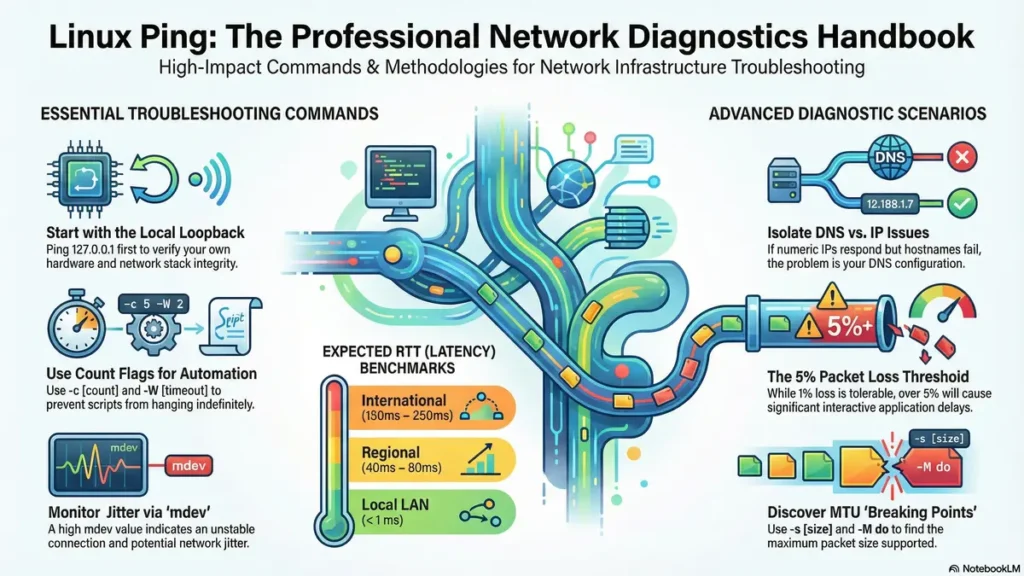
Before you ping an external target, get into the habit of always pinging your local loopback to see if there is a problem with your own hardware first.
Know what flags require a privileged account (sudo) and what flags are standard (-s, -i, -v and -h).
Be able to locate the summary statistics at the end of each session and read them.
The most basic execution of the ping command is ping 8.8.8.8; however, in Linux, this will run indefinitely unless you stop it with a Ctrl+C command. To do so, use a count flag: ping -c 4 https://www.google.com/search?q=google.com. This gives you the ability to take a snapshot of four pings, which is normally sufficient to verify your network connectivity.
You should always check your own hardware by pinging the loopback address (ping 127.0.0.1) before you assume it is an external network issue. If the loopback address fails, your network stack is corrupt, and no amount of troubleshooting on external networks will resolve that issue.
DNS vs IP Diagnostics
A frequent mistake new admins make is thinking that there is an “Internet Down” problem when really only a translation layer is down (like DNS). Being able to differentiate between routing and name resolution issues is essential for a quick resolution to a problem.
To help develop this skill, you should:
- Be able to find DNS failures by pinging an (numerical) IP.
- Understand what /etc/resolv.conf does and how it relates to ping.
- Check specific DNS servers by pinging them.
- Be able to identify if a firewall is blocking port 53 or is blocking ICMP.
- Be able to determine whether a “Host Unknown” error is coming from locally or remotely.
For example: If you can ping 8.8.8.8 but cannot ping (via ping) https://www.google.com/search?q=google.com but instead receive an error like “Name or Service Not Known”, then you have a DNS issue and can save yourself a lot of time searching for the issue on the hardware because you can go directly to the nameserver configuration.
In Linux, you can also use the -n option with ping to output only numeric responses. This will speed up the process of getting the ping response because it will not take time for the system to find out what the reverse DNS of the IP is responding to it. This is especially helpful during a time of high congestion on a network.
Benefits of ping: Interpreting Packet Loss
Packet loss is the #1 reason VOIP, gaming and databases don’t work as expected. Knowing the reasons packets “drop” will help you determine if there is a problem with your cables or if it is an issue with your provider’s router.
Learn how to tell the difference between 1% AND 100% packet loss.
Recognize hardware “flapping” from intermittent ping dropouts.
Identify when bandwidth is saturated because of dropped ICMP packets.
Understand how “Packet Loss” affects TCP retransmits.
Justify replacing hardware based on data.
Zero percent packet loss is ideal; however, a relatively small amount (less than 1%) may be acceptable on long distance public connections, but if there are more than 5% packet losses, users will experience delays when using interactive applications.
Since many things can cause intermittent issues, increase the length of your tests; for example using the ping -c 100 target_ip command. A larger sample size will give you a more accurate percent of packet loss which will help you figure out whether your cable may be loose or your router may be failing under load.
Benefits of ping: Latency and RTT Benchmarking
Latency is a metric that measures how long it takes to send data through your Internet connection and is sometimes referred to as the Round Trip Time (RTT). For the purpose of establishing appropriate performance criteria for a region’s Internet connectivity, it is advantageous to have an understanding of a healthy (good) RTT, as a function of your geographic location.
Learning how to interpret the statistics of min, avg, max and mdev will be helpful to you as well.
Realizing that geography contributes significantly to the overall RTT.
Identifying jitter, or unstable connection due to fluctuations in RTT, by evaluating the mdev value.
Realizing that high levels of latency may cause applications to time out.
Establishing an RTT baseline for local/regional/global.
When you evaluate ping alerts from Linux, the mdev value can be an indication of how reliable your connection is; a higher mdev value would indicate that your connection is not stable (due to jitter) and is causing more issues for the user than an acceptable latency.
For example a ping in linux from your local LAN would be expected to return < 1ms, while a ping across the country may return around 40ms-80ms, and a ping from the US to Europe via an undersea cable may return between 150-250ms. If your ping from your local gateway to the ISP is returning 100ms, you may have an issue at the physical layer or an excessive amount of congestion locally.
Count and Timeout for Automation
When working in an office setting, you will not always be directly typing commands; but rather you will write scripts to assist you with those jobs. Knowing the various flags that control the length and return value of a ping in linux is critical for automation of your scripts.
- Use -W (timeout) to prevent script hangs.
- Know the exit codes (0=successful, not-zero=unsuccessful).
- Create “Heartbeat” scripts to monitor your servers.
- Determine how to apply -w (deadline) to time based tests.
- Identify how to set up automatic “Alert” notifications.
To run your scripts, you would use ping -c 1 -W 1 8.8.8.8. The -c 1 means you’ll send one packet and then wait exactly one second for a response using -W 1. If a response does not arrive in that time, the script moves onto the next command immediately instead of waiting for the default OS timeout.
By checking the $? variable in a bash script after running ping, you will be able to trigger automatic fail-sovers. For example, if ping returns a non-zero return code from the Linux command line you can program your script to automatically switch from the primary internet connection to the secondary internet connection or restart a service if the diffrerence between the value that it returned is not equal to zero.
Flood Ping in linux and Stress Testing
Sometimes organizations want to know how their networks will perform under heavy stress. Flooding a network is a powerful tool to test its strength, however, because of the potential for flooding a network, one must be careful not to create an outage on their own network when doing this type of testing.
Prior to using flooding as a network stress test, an individual should:
- Use the -f command option for fast packet transmission.
- Be aware that sudo may be required when performing flooding.
- Clarify baseline routing device throughput and CPU utilization.
- Understand the meaning of a dot (.) or backspace (backspace) in regards to the loss of packets.
- Verify that your new installation will function properly by performing a “smoke test.”
To test a routing device’s ability to receive incoming packets, use the following command syntax: (i.e., sudo ping -f target_ip). When pinging a target device in this manner, you will notice that each dot (.) represents a packet sent and each backspace received will result in a reply.
WARNING: UDP Flooding your devices may cause them to be flagged as a Denial of Service (DDoS) attack by your network security equipment. Flooding via pinging should only take place on devices you own or are authorized to test. Pinging a device in flood mode can be used to verify that your firewall and/or router can maintain high packets-per-second (PPS) performance under extreme conditions.
MTU Path Discovery
The MTU (Maximum Transmission Unit) issue can lead to a failure of large packets even though smaller packets are sent through successfully, for example, transferring files. A very sophisticated troubleshooting skill is knowing how to utilize ping to test the “breaking point” of the size of your packets.
- Understand how to use the -s flag in ping to change the size of your packets.
- Understand how to use the “Don’t Fragment” (DF) bit with -M do in ping.
- Find and identify black hole routers that drop large packets.
- Develop the ability to calculate the optimal MTU setting for VPNs.
- Have the ability to troubleshoot and fix slow SSH connections or broken HTTPS handshakes.
When you suspect an MTU issue, use the command: “ping -s 1472 -M do 8.8.8.8”. Since the size of the ICMP header is 28 bytes, 1472 + 28 = 1500 which is the default MTU for Ethernet networks. Since a result of “Frag needed” means you have a path with a lower MTU setting required.
Next, using 4-byte increments, gradually lower your packet size all the way down below 1472 until you ping successfully in order to find the exact MTU limit of your connection. This is also the most common way to troubleshoot GRE or IPsec tunnels, which add additional overhead to the packets that are sent through them.
IPv6 Implementation
Being comfortable with IPv6 is now essential for those involved in the shift from IPv4.
Modern Linux distributions now include support for IPv6 as part of their standard ping in linux.
For example, in older versions of the Linux operating system, you had to use ping and ping6 to ping IPv4 and IPv6 addresses, respectively. However, on modern systems, use ping -6 http://www.google.com to test your IPv6 connectivity.
When using link-local addresses such as fe80::1, you will need to include the -I option to define the interface through which you would like to reach your destination (e.g., ping -6 fe80::1%eth0).
It’s important to confirm that IPv6 connectivity is functioning because many systems are configured to use IPv6 first. If your IPv6 route is not functioning and you can reach your destination using IPv4, you may experience a delay of up to 30 seconds while waiting for the IPv6 connection attempt to time out and your browser is able to revert back to using IPv4 for the attempted connection to your destination.
Security and Firewall Obstacles
It is important for any administrator to know when a ping failure is due to an “undetected host.” This may occur when an administrator has configured the server or firewall to ignore or block ICMP packets to protect from attack or reduce resource usage.
In addition, there are ways to distinguish between a “Destination Port Unreachable” response and a “Request Timeout” response from a server.
Many ISPs restrict ICMP traffic through the use of rate limits. Understand why some ISPs apply ICMP rate limits.
A stateful firewall will block return traffic to the initiate host. Understanding when this happens can allow you to bypass the stateful firewall.
Alternative tools such as arping or hping3 will allow administrators to perform functions normally performed by pinging, but without depending on ICMP packets.
If an administrator has Pinged a host with Linux and the server is still web accessible but reporting 100% loss, it is most likely due to the server or firewall rejecting ICMP Echo Requests. Blocking ICMP Echo Request is very common due to security concerns due in-part to ICMP filtering.
In these and/or similar situations where you would like to confirm a server is alive without using ICMP and/or Ping, you could perform the following command: hping3 -S -p 80 [target_ip]. This command sends a TCP SYN to the target on port 80. This will provide you with more accurate information on whether the server is alive than doing it via ICMP due to the use of standard Web Ports to bypass an ICMP block or filter.
What Are the Benefits of ping in linux? Your Questions Answered
1. Why is ping in linux used for troubleshooting? It is the fastest way to verify physical connectivity and measure latency between two points on a network.
2. How do I stop a continuous ping in linux? Press Ctrl+C on your keyboard to terminate the process and see the summary statistics.
3. Can ping in linux detect DNS issues? Yes, if you can ping an IP address but not a domain name, your DNS configuration is broken.
4. What does “Destination Host Unreachable” mean in ping in linux? This indicates that there is no route to the target IP from your current network.
5. How do I change the interval of ping in linux? Use the -i flag, such as ping -i 0.5, to send a packet every half-second.
6. Why does ping in linux show high latency? High latency usually indicates network congestion, physical distance, or a failing hardware component in the path.
7. Is there a way to ping in linux with IPv6? Yes, use the -6 flag or the ping6 command to test IPv6 addresses specifically.
8. What is the default packet size for ping in linux? The default is 56 bytes of data, which results in a 64-byte ICMP packet including the header.
9. How can I ping in linux and save it to a file? Use the redirect operator: ping https://www.google.com/search?q=google.com > network_log.txt to save the output for later analysis.
10. Does ping in linux use TCP or UDP? Neither; it uses the ICMP protocol, which sits directly on the IP layer (Layer 3).
11. How do I check for packet loss with ping in linux? Run the command with a count (-c 50) and look at the “packet loss” percentage in the final summary.
12. Why do some websites not respond to ping in linux? Many servers block ICMP traffic for security reasons to prevent discovery and DoS attacks.
13. How do I use ping in linux to test a local network card? Run ping 127.0.0.1; if it fails, your local OS network stack is malfunctioning.
14. Can I change the timeout for ping in linux? Yes, use -W [seconds] to set how long to wait for a single response.
15. What does the “mdev” value mean in ping in linux? It stands for mean deviation, which measures the “jitter” or stability of your connection latency.
16. How do I perform a flood ping in linux? Use sudo ping -f [target] to send packets as fast as possible for stress testing.
17. Can ping in linux help find MTU issues? Yes, by using the -s (size) and -M do (don’t fragment) flags together.
18. How do I ping a specific interface in linux? Use the -I flag followed by the interface name, like ping -I eth0 8.8.8.8.
19. Why does my ping in linux stop responding after a few seconds? This could be caused by an ISP rate-limiter or a firewall that detects frequent ICMP as a threat.
20. Is ping in linux different from Windows ping? Yes, the Linux version runs indefinitely by default and offers more advanced flags like flood and MTU discovery.
You have now transitioned from basic connectivity checks to advanced network diagnostics. By mastering the 10 critical workflows of ping in linux, you possess the technical depth to solve outages that baffle others. Whether it’s identifying jitter, fixing MTU mismatches, or automating heartbeats, you are ready to manage enterprise-grade infrastructure with total confidence.
To know about basic linux command read here https://codingjourney.co.in/basic-linux-commands/
Learn more:
CodingJourney.co.in |
CodingJourney Sulekha