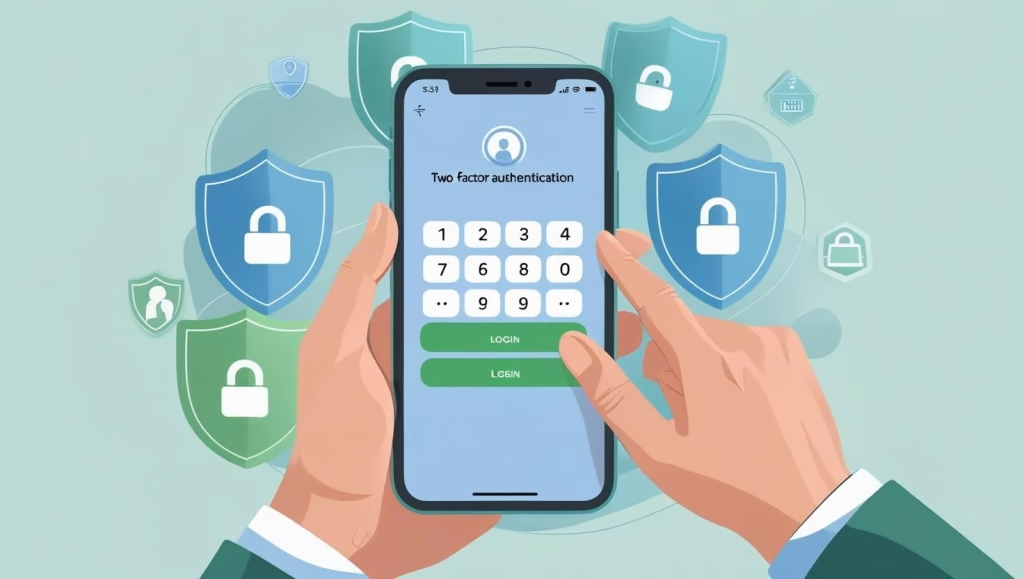
Protecting your online accounts is more important than ever. With digital threats evolving, adding an extra layer of security is crucial. This guide walks you through enabling two factor authentication Facebook (2FA) to safeguard your personal data and prevent unauthorized access.
Table of Contents:two factor authentication facebook
- What Is Two Factor Authentication?
- Why Two Factor Authentication Matters
- How Facebook 2FA Works
- How to Enable Two Factor Authentication on Facebook
- Best Practices for Facebook 2FA
- Troubleshooting Common 2FA Issues
- Top Benefits of Using Facebook 2FA
- Frequently Asked Questions (FAQ)
- Conclusion
What Is Two Factor Authentication?
Two Factor Authentication (2FA) is a security process that requires two verification methods to access an account. On Facebook, this typically involves entering your password and a unique code sent to your phone or generated by an app. This ensures that even if someone has your password, they can’t log in without the second factor.
Why Two Factor Authentication Matters
cybercriminals frequently target social media accounts to steal personal data. Enabling Two Factor Authentication on Facebook (2FA) helps block unauthorized logins, secures your identity, and reduces the risk of account compromise.
- Blocks access from unknown devices
- Protects private messages and personal info
- Reduces the chance of phishingand scams
- Improves overall account integrity
How Facebook 2FA Works
Once Two Factor Authentication on Facebook is turned on, logging in will prompt you to enter a second code after your password. The user receives this single-use code on their mobile device through one of the chosen verification methods:
- SMS: Receive a code via text message.
- Authentication App: Use Google Authenticator or Authy to generate a time-sensitive code.
- Security Key: Insert a physical key like YubiKey for the most secure option.
How to Enable Two Factor Authentication on Facebook
- Log in to your Facebook account.
- Open your profile menu and choose the ‘Settings & Privacy’ option from the dropdown list.
- Go to Security and Login.
- Locate the Two-Factor Authentication settings and select the “Edit” option to begin configuration.
- Select your desired verification method—text message, authenticator app, or security key—and complete the setup by following the guided steps.
- Store the backup codes provided in a safe place for recovery.
Best Practices for Two Factor Authentication on Facebook
- Use a strong, unique password alongside 2FA.
- Regularly review trusted devices and login alerts.
- Update your recovery options if you change your phone number or device.
- Never share your 2FA codes with anyone.
- Consider using a hardware security key for maximum protection.
- Change your Facebook password if you suspect any unauthorized access.
- Log out of unused or old devices from your Facebook settings.
- Periodically regenerate and store fresh backup codes.
- Avoid using public Wi-Fi when logging into Facebook, especially without VPN.
- Do not click on suspicious links asking for your Facebook credentials.
- Double-check the URL before logging in to avoid phishing sites.
- Enable 2FA on all associated email accounts as well.
- Don’t store 2FA codes in plain text on your device.
- Always lock your device when not in use.
- Check the official Facebook security help section for regular updates.
Troubleshooting Common 2FA Issues
If you can’t receive a code or lose your device, use the backup codes provided during setup. Alternatively, access your account through a previously trusted device or contact Facebook support. Keeping your contact details updated can help in recovery.
Top Benefits of Using Facebook 2FA
- Two Factor Authentication on Facebook stops unauthorized users even if your password is leaked
- Secures personal data from cyber threats
- Helps avoid identity theft and data breaches
- Complies with modern digital security best practices
According to Onelogin, enabling two factor authentication is one of the most effective defenses against unauthorized access and hacking.
Frequently Asked Questions (FAQ)
1. General Questions About Facebook 2FA
- Is Two Factor Authentication on Facebook free to use?
Yes, Facebook does not charge any fee for enabling two-factor authentication. - Can I activate 2FA without providing a phone number?
Absolutely. You can use an authentication app or a physical security key instead of SMS verification. - Can I turn off 2FA after enabling it?
Yes, you can disable it at any time in your Facebook security settings. - Is Facebook 2FA required for all users?
No, it is optional but highly recommended—especially for users managing business pages or sensitive data.
2. How Facebook 2FA Works
- Among SMS, authentication apps, and security keys for Two Factor Authentication on Facebook, which provides the highest level of security?
Among all, a hardware security key provides the highest protection, followed by authentication apps. - Is the Facebook authentication code the same every time?
No, each code is time-based and expires quickly to prevent unauthorized use. - Will 2FA slow down my login process?
Only slightly. - Does Facebook 2FA work on all devices?
Yes, it works seamlessly across mobile phones, desktops, and tablets.
3. Managing Your Devices and Settings
- What happens if I lose access to my 2FA method?
You can regain access using backup codes or a trusted device. Just make sure your recovery options are updated regularly. - What if I change my phone or phone number?
As soon as you switch devices, update your Facebook 2FA settings to avoid login issues. - Will 2FA log me out from other devices?
No, enabling 2FA doesn’t automatically log you out.
4. Using Backup Codes and Multiple Methods
- How do I find my Facebook backup codes?
Go to Settings > Security and Login > Two-Factor Authentication to view or download your backup codes. - How often should I update my backup codes?
It’s wise to refresh your backup codes periodically—especially after using them or changing your 2FA method. - Can I use multiple authentication methods at once?
Yes. Facebook allows you to combine SMS, an authentication app, and a security key for better flexibility and safety.
5. Security Tips and Considerations:Two factor authentication on facebook
- What happens if someone gets my Facebook password?
With 2FA enabled, they would still need your second authentication factor. This prevents most unauthorized access attempts. - Can someone bypass Facebook 2FA?
While rare, methods like phishing and SIM swapping could potentially bypass SMS-based 2FA. That’s why a security key or app is recommended. - Can I use my email as a second factor?
No, Facebook does not support email as a two-factor authentication method. - Can I use 2FA while traveling abroad?
Yes, you can. Just ensure you have access to your backup codes or use an authentication app, in case SMS doesn’t work in that region. - Which authentication apps work with Facebook 2FA?
Popular options include Google Authenticator, Authy, LastPass Authenticator, and Microsoft Authenticator.
Conclusion: two factor authentication on facebook
Enabling Two Factor Authentication on Facebook is a simple yet powerful way to protect your account. Whether you’re using SMS, an app, or a security key, the added layer of verification keeps your personal data secure.
You May Like This
-
🕵️♂️ 5 Key Steps of Ethical Hacking Every Beginner Should Know
-
🍏 How to Use Kali Linux on Mac: A Step-by-Step Guide
-
🔐 What Is Application Security? A Beginner’s Guide
-
📁 What Is Information Security? Understanding the Basics
-
🌐 What Is Network Security and Why It Matters Today
-
🔌 What Is a WordPress Plugin? How to Extend Your Website’s Features
-
💻 Why You Should Learn C: A Comprehensive Guide for Aspiring Programmers
🔒 Looking for the best antivirus to protect your devices?
👉 Check out this top-rated antivirus software on Amazon!