Introduction
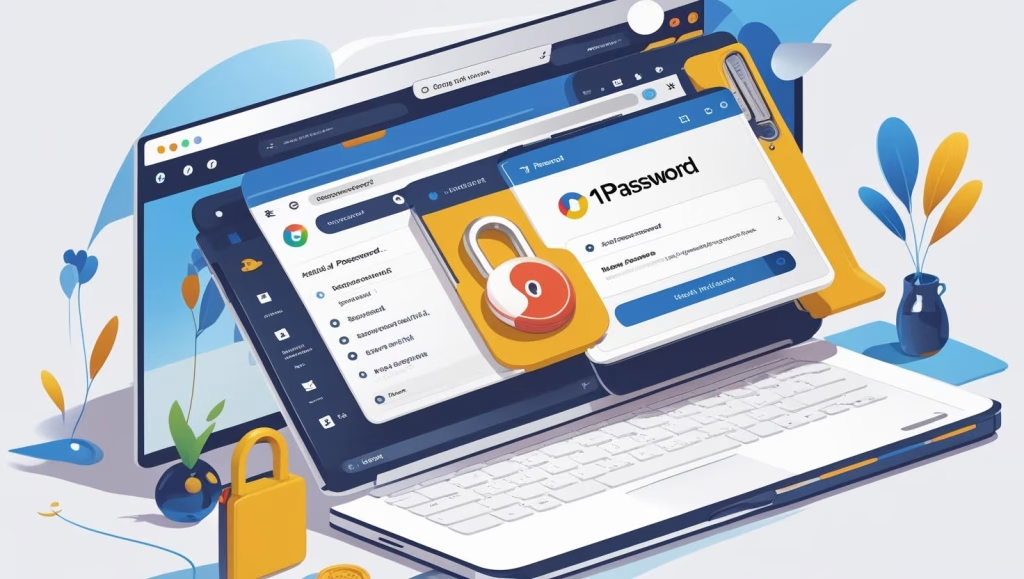
Managing multiple passwords securely is a growing challenge in our digital lives. The 1Password Chrome Extension is a powerful tool designed to simplify password management and keep your online accounts safe.
What Is the 1Password Chrome Extension?
The 1Password Chrome Extension is a powerful browser tool designed to simplify and secure your online experience by managing your passwords directly within Google Chrome. With this extension, you can easily log in to websites, autofill your saved usernames and passwords and generate strong, unique passwords for new accounts—all without leaving your browser. Your sensitive information including passwords, credit card details and secure notes is encrypted and stored safely in your personal 1Password vault, ensuring your data remains private and protected.
The extension automatically syncs your data across all your devices, so you can access your passwords whether you’re on a desktop, laptop or mobile device. It also helps you stay safe online by alerting you to weak, reused or compromised passwords and notifying you of potential security breaches affecting your accounts. For added convenience and security, the 1Password Chrome Extension supports biometric authentication such as fingerprint or face recognition, allowing you to unlock your vault quickly and securely. Installation is straightforward, and the extension is available as part of a 1Password membership which includes a free trial for new users. Overall, the 1Password Chrome Extension offers a seamless and secure way to manage your passwords and sensitive information, making your digital life safer and more convenient.
Key Features
- Easily save and autofill passwords, credit card details, and secure notes directly in your Chrome browser for seamless online access.
- Generate strong, unique passwords and passkeys for every account, reducing the risk of security breaches.
- Automatically sync your data across all devices, including Mac, Windows, Linux, iOS, and Android, ensuring you always have access to your credentials.
- Organize your sensitive information into secure vaults for better management and quick retrieval.
- Receive alerts about weak, reused, or compromised passwords, and get notified of potential security issues through the Watchtower feature.
- Use biometric authentication, such as fingerprint or face recognition, for fast and secure access to your vault.
- Enjoy a simple installation process and intuitive interface, making it easy for both beginners and advanced users to manage passwords.
- Access and manage all your passwords, payment methods, and sensitive data without ever leaving your browser, streamlining your workflow.
- Benefit from enhanced privacy, as all stored data is encrypted and protected by your master password.
How to Install the 1Password Chrome Extension
- Go to the Chrome Web Store.
- Search for “1Password”.
- Click on “Add to Chrome”.
- Log in with your 1Password credentials.
How to Use the 1Password Chrome Extension
- Ensure you have Google Chrome installed and a 1Password account set up.
- Open the Chrome Web Store.
- Type “1Password” in the search bar of your browser and press Enter button from your keyboard.
- Look for the official 1Password extension from the results.
- Click on the “Add to Chrome” button.
- When prompted, select “Add Extension” to confirm and complete the installation.
- The 1Password icon will appear in your Chrome toolbar after successful installation by selecting the pin next to 1Password. It will help in easy access of 1Password extension.
- Login into your 1Password account using your 1Password userid and password created during initial setup of 1Password account.
- Import existing passwords from Chrome or other password managers or start saving new logins as you browse.
- When you visit a website and enter your credentials, the extension will prompt you to save them securely in your 1Password vault.
- Use the built-in password generator to create strong, unique passwords for new accounts, which will be saved automatically.
- Organize your information into vaults and use the search feature to quickly find any saved item.
- Sync your data across all devices to ensure you always have access to your credentials.
- Enable biometric authentication for added security and receive alerts for weak or compromised passwords.
Security and Privacy Features
- End-to-end encryption protects all your data locally before it leaves your device, ensuring only you can access your information.
- Dual-key protection combines your master password with a unique Secret Key for enhanced account security.
- The extension operates in a sandboxed environment, isolating it from web pages to reduce the risk of browser-based attacks.
- A strict content security policy prevents the extension from loading untrusted resources and secures internal communications.
- Biometric authentication, such as fingerprint or face recognition, allows for quick and secure unlocking of your vault.
- Automatic locking after inactivity keeps your vault protected if you step away from your device.
- Phishing protection ensures credentials are only autofilled on the exact sites where they were saved.
- Watchtower alerts notify you of weak, reused, or compromised passwords and known data breaches.
- Secure communication between the extension and desktop app prevents interception or tampering.
- Your master password and Secret Key are never stored or transmitted, guaranteeing only you can decrypt your data.
- Privacy by design means your sensitive information stays private and under your control at all times.
Troubleshooting Common Issues
- Extension not visible? Ensure it’s enabled in Chrome extensions settings.
- Autofill issues? Refresh the page or restart the browser.
- Sync problems? Check your internet connection or login status.
1Password Chrome Extension vs Competitors
| Feature | 1Password | LastPass | Bitwarden |
|---|---|---|---|
| Autofill Accuracy | ✅ | ✅ | ✅ |
| UI/UX | Modern | Average | Basic |
| Free Plan | Limited Trial | Yes | Yes |
Frequently Asked Questions (FAQ)
1. Is the 1Password Chrome extension free to use?
You can use it during the free trial, but a subscription is required afterward.
2. Does the extension work without installing the desktop app?
Yes, it works independently in the browser, but the app offers deeper system integration.
3. Can I use the extension in Chrome’s incognito mode?
Yes, but you need to manually enable it in Chrome’s incognito settings.
4. Does the extension auto-fill login forms?
Yes, it can auto-fill usernames, passwords, and other saved data.
5. Is 1Password available on other browsers too?
Yes, it’s available for Firefox, Edge, Brave, Safari, and others.
6. Can I generate strong passwords with the extension?
Yes, the built-in password generator helps you create secure passwords.
7. Does it sync across multiple devices?
Yes, your data is synced through your 1Password account on all devices.
8. Is 2FA (Two-Factor Authentication) supported?
Yes, it supports storing and autofilling 2FA codes (TOTP).
9. Can I store notes or documents in the extension?
Yes, secure notes and files can be stored alongside passwords.
10. Does the extension notify me of compromised passwords?
Yes, it can alert you if your passwords appear in known breaches.
11. Can I organize my vaults or categories from the extension?
Yes, you can view, organize, and access vaults and items.
12. What happens if I forget my master password?
1Password cannot recover it. You need your Emergency Kit to regain access.
13. Can I share passwords securely from the extension?
Yes, it includes a feature to share items securely with others.
14. Does the extension require internet access to work?
Yes, mostly, but some limited features may work offline if data was previously cached.
15. Can I use 1Password for free forever?
No, it requires a subscription after the free trial ends.
Conclusion
If you’re looking for a secure and seamless way to manage your passwords, the 1Password Chrome Extension is a reliable option. It’s easy to install, packed with features, and backed by industry-standard security. Try it today and simplify your digital life!
You May Also Like
- How to Use Kali Linux on a Mac
- What Is Application Security? Explained
- What Is Information Security?
- What Is Network Security? Key Concepts & Importance
- What Is WordPress? A Beginner-Friendly CMS Explained
- What Is a WordPress Plugin? Full Beginner’s Guide
- Why You Should Learn C: A Comprehensive Guide
- WordPress Admin Dashboard: Beginner’s Guide
🔐 Recommended Antivirus
Norton Antivirus Plus | 1 User 3 Years |Additionally Includes Smart Firewall, Password Manager & PC Cloud Back Up | PC & Mac |Email Delivery in 2 Hrs. Try Norton Antivirus plus today and enjoy secure, seamless security of your online accounts.