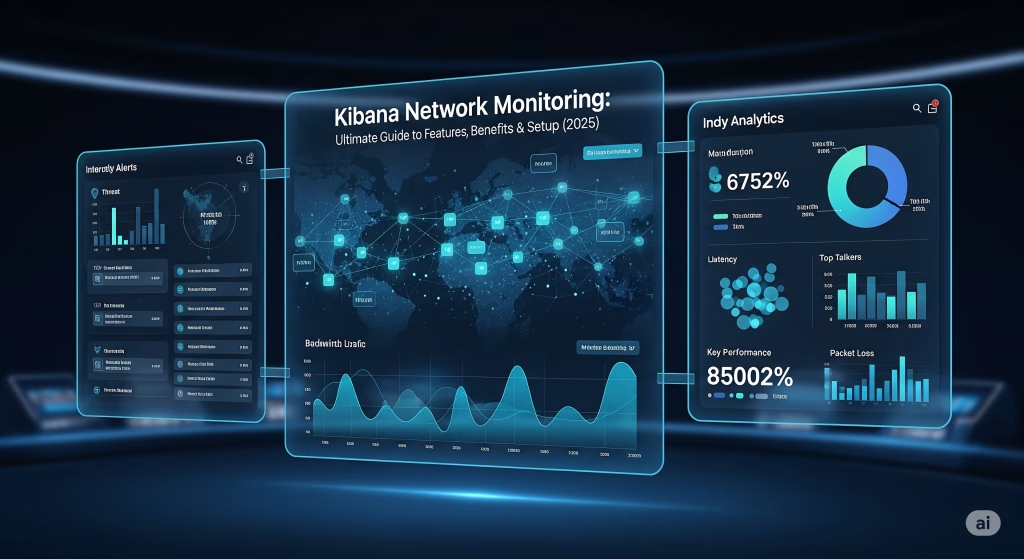
In today’s digital world, organizations need reliable network monitoring for security, performance, and uptime. Kibana Network Monitoring is a flexible platform designed for real-time visualization, analysis, and actionable insights into network data. Whether you’re a network engineer, cybersecurity analyst, or IT admin, mastering Kibana’s features is vital for efficient oversight and rapid incident response.
This guide explores Kibana Network Monitoring, highlighting key features, practical steps, and its benefits for businesses of any scale. By the end, you’ll see how to use Kibana to optimize your network monitoring strategy.
What is Kibana Network Monitoring?
Kibana Network Monitoring includes Kibana’s functionalities for monitoring network traffic, analyzing connections, and detecting anomalies.
Network data is captured using tools like Packetbeat. This data (IP addresses, ports, protocols, packet sizes, event timestamps) is collected and indexed in Elasticsearch. Kibana provides an intuitive interface for exploring this data, building dashboards, setting alerts, and applying machine learning for anomaly detection.
Why Use Kibana for Network Monitoring?
- Real-time Insights: Visualize and analyze traffic as it happens for prompt troubleshooting.
- Customization: Flexible dashboards tailored to network KPIs and metrics.
- Scalability: Easily handles data from small setups to enterprise networks.
- Security: Role-based access and SSO ensure secure monitoring.
- Integration: Combine with log analysis, security events, and business metrics as part of the Elastic Stack.
Key Features of Kibana Network Monitoring
1. Real-Time Network Data Visualization
- Line, Bar, and Area Charts: Track bandwidth, connections, or protocol activity over time.
- Pie Charts and Treemaps: Show traffic distribution by service, protocol, or source.
- Heat Maps: Highlight peak traffic times or load locations.
- Elastic Maps: Display geospatial data for network traffic globally.
These visualizations make it easy to spot traffic patterns and abnormalities.
2. Interactive and Customizable Dashboards
- Drag-and-drop interface for panels.
- Real-time updates for the freshest data.
- Widgets, filters, and search bars for deep dives.
- Sharing options for secure collaboration.
3. Graph Analytics for Network Topology
- Visualize connections between IPs, servers, and services.
- Examine patterns to identify threats.
- Drill into suspicious paths for investigation.
4. Geospatial Analysis Using Elastic Maps
- View traffic sources and destinations on maps.
- Overlay layers for attack origins, data centers, or device locations.
- Animate data over time to find trends or spikes.
5. Time-Series Data Analysis
- Analyze bandwidth, latency spikes, or packet loss across intervals.
- Compare periods for recurring patterns.
- Build complex, multi-metric visualizations.
6. Machine Learning for Anomaly Detection
- Detect unusual traffic surges, scans, or protocol shifts automatically.
- Set up jobs to monitor streams continuously.
- Receive alerts on anomalies.
7. Advanced Querying and Filtering
- Use the Discover tab for free-text or field-specific searches.
- Utilize the Console for Elasticsearch Query DSL or EQL.
- Save searches for reuse.
8. Scheduled Reporting and Alerting
- Generate scheduled summary reports—available in PDF, CSV, or PNG formats—that provide comprehensive overviews of network health and recent incidents.
- Configure alerts for threshold breaches or detected anomalies.
- Trigger emails, Slack messages, or webhooks for workflow integration.
9. Security Controls and Access Management
- Role-Based Access Control (RBAC) for data visibility and modification.
- SSO for enterprise authentication.
- Field/document-level security to protect sensitive data.
10. Customization and Extensibility
- Use Canvas for customizable, infographic presentations.
- Extend with plugins and runtime fields.
- Embed visualizations in other apps or portals.
How to Use Kibana Network Monitoring: A Step-by-Step Guide
Step 1: Acquire and Ingest Network Data
- Deploy Packetbeat on endpoints/servers to capture flows and packet metadata.
- Configure Packetbeat to send data to Elasticsearch.
- You can also use third-party shippers or integrate with other tools.
Step 2: Configure Index Patterns in Kibana
- Go to Management > Index Patterns.
- Define patterns to match your data (e.g., packetbeat-*).
- Verify field mappings and timestamps.
Step 3: Explore Network Data in Discover
- Use Discover to examine raw network logs.
- Apply filters to focus on suspicious IPs, protocols, or time ranges.
- Save frequent queries.
Step 4: Create Network Visualizations
- Go to Visualize and build charts — bar for traffic, pie for protocol breakdown.
- Use Kibana Lens for drag-and-drop creation.
- Try Timelion or Time Series Visual Builder for trends.
Step 5: Assemble Dashboards for Ongoing Monitoring
- Combine visualizations in dashboards.
- Customize to emphasize critical KPIs.
- Set dashboard refresh intervals.
Step 6: Leverage Graph Analytics for Connectivity
- Use the Graph app for network node relationships.
- Identify clusters, hubs, or suspicious connections.
- Deepen investigations using graph queries.
Step 7: Apply Geospatial Visualization
- Open Elastic Maps.
- Load IP-to-location geolocation fields.
- Build layered maps to analyze geographic traffic.
Step 8: Set Up Machine Learning Jobs
- Go to Machine Learning.
- Create anomaly detection jobs for relevant metrics.
- Tune jobs as needed.
Step 9: Configure Alerts and Reporting
- Use Alerts and Actions to set up rules.
- Schedule reports for stakeholders.
- Export as needed.
Step 10: Manage Security and Access
- Set up and assign roles and access permissions within the Stack Management section under the Roles configuration area.
- Assign dashboard/data access by team role.
- Integrate enterprise authentication.
Benefits of Using Kibana Network Monitoring
- Complete Visibility: Consolidate network traffic, security logs, and performance metrics in a single, unified platform.
- Proactive Detection: Leverage machine learning to automatically detect anomalies, enabling early identification of potential issues before they escalate.
- Efficient Troubleshooting: Powerful querying and visualization tools help quickly pinpoint the root causes of network problems.
- Enhanced Security: Detect suspicious traffic patterns and enforce role-based access control to protect sensitive data.
- Scalability: Elastic Stack’s distributed architecture allows Kibana to scale seamlessly from small environments to large enterprise networks.
- Customization: Build dashboards and visualizations tailored specifically to your network’s unique needs and KPIs.
- Real-Time Monitoring: Gain live insights into network status, traffic flows, and security events as they happen.
- Advanced Analytics: Use time-series analysis, graph visualizations, and geospatial mapping to understand complex network relationships.
- Alerting and Notification: Set up automated alerts for threshold breaches or anomalies, ensuring rapid response.
- Scheduled Reporting: Automatically generate and distribute customized reports in various formats (PDF, CSV, PNG) for stakeholders.
- Multi-Source Data Integration: Combine data from Packetbeat, Filebeat, Metricbeat, and third-party tools for a comprehensive view.
- Interactive Dashboards: Drag-and-drop interface allows intuitive creation and modification of dashboards without coding.
- Anomaly Detection Jobs: Configure continuous machine learning jobs to monitor network traffic deviations without manual oversight.
- Graph Analytics: Visualize network topologies and communication paths to discover hidden connections or potential attack vectors.
- Geospatial Visualization: Plot IPs on maps to track geographical traffic patterns or identify origin points of attacks.
- Role-Based Access Control (RBAC): Securely delegate dashboard and data access according to team roles, minimizing risk exposure.
- Single Sign-On Integration: Seamlessly integrate with enterprise authentication systems for streamlined user management.
- Easy Data Exploration: Use Discover and Console for ad hoc search, complex queries, and rapid data slicing.
- Unified Security Posture: Integrate Kibana Network Monitoring with SIEM, XDR, or SOC platforms to enhance security operations and incident response.
Conclusion
Follow the steps here—from data ingestion to visualization, alerting, and security—to unlock the full power of Kibana and maintain a resilient, secure network. Set up Elasticsearch and Kibana, feed in data with Packetbeat, and start building dashboards tailored to your needs.
Frequently Asked Questions (FAQ)
- What is Kibana Network Monitoring?
Kibana Network Monitoring is a suite within Kibana for analyzing, visualizing, and monitoring network data with dashboards, alerts, and anomaly detection. - How does Kibana ingest network data?
Packetbeat or Logstash send traffic and log data to Elasticsearch, which Kibana then visualizes. - Which visualization types are available?
Line, bar, area, pie charts, treemaps, heat maps, and Elastic Maps for geospatial visualization. - Can Kibana monitor network security events?
Yes, it displays security logs, detects anomalies, and offers threat dashboards. - How do I build dashboards in Kibana?
Use the Dashboard feature to combine charts/visualizations and create interactive views. - Does Kibana support real-time alerts?
Yes, set rules to notify teams of breaches, incidents, or anomalies. - What ML features does Kibana offer?
Automatic anomaly detection for unusual activities like DDoS or scans. - How do I filter network data?
Use Discover with queries, filters, and field selection. - Is Kibana suitable for large networks?
Yes, it scales from small to enterprise deployments. - Which other Beats can be integrated?
Filebeat (logs), Metricbeat (metrics), Winlogbeat (Windows events). - Can I extend Kibana’s functionality?
Yes, with plugins, runtime fields, and Canvas. - Does Kibana require coding?
No coding needed for basic use; advanced queries use DSL/EQL if required. - What is an Index Pattern?
It helps Kibana find relevant data for searches and visualizations. - How do I monitor cloud and on-prem networks together?
Send both into Elasticsearch for unified Kibana dashboards. - Can Kibana integrate with other security tools?
Yes, with SIEM, XDR, or SOC tools. - What are Kibana’s system requirements?
Depends on size. Modern servers with ample CPU/RAM are recommended; consult Elastic’s docs for details.
For more detailed information, official documentation, and latest updates on Kibana Network Monitoring, visit the Elastic Kibana Network Overview.
Want to deepen your cybersecurity skills? Don’t miss:
Metasploit Framework on Kali
How to Install Kali Linux on Virtual Machine
How to Use TheHarvester in Kali Linux
What is OpenVAS in Cybersecurity