
If you wish to increase the traffic to your website, it is vital to understand how to write a blog post in WordPress to rank on Google. WordPress is the most popular blogging platform in the world, with millions of sites using it to publish their articles. However, it is not enough to write a blog post. It has to be well-structured, optimized, and informative to rank on Google search results.
In the following article, you will understand how to write a blog post in WordPress to rank on Google step by step, starting from logging into the WordPress dashboard to publishing a well-structured article.
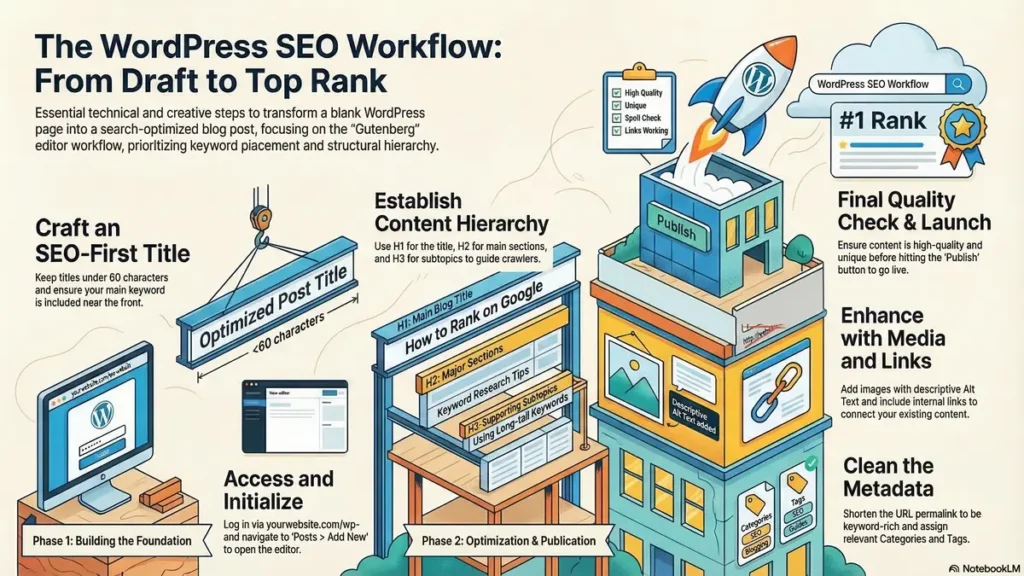
Step 1: Login to the WordPress Admin Panel
To write a blog post, the first step is to log in to the WordPress dashboard.
To do that, open the browser and enter the WordPress login page to the administrator dashboard of your website.
Example:
yourwebsite.com/wp-admin
if my website is codingjourney.co.in then
codingjourney.co.in/wp-admin
After you enter the correct username and password, click the Login button.
After you have successfully logged in, you will see the WordPress dashboard on the screen.
Step 2: Go to the Posts Section
After successfully entering your WordPress site, navigate to the section on the left menu bar.
The following are the steps to navigate to the section:
Go to the left menu bar on your screen.
Look for the word Posts.
Click on Posts.
Then, on your screen, a pop-up window titled Add New Post should appear.
The WordPress editor, also known as Gutenberg, is a text editor used to write your blog post.
Step 3: Write an SEO-Friendly Title
The first section on your screen is the Post Title section.
Your title should have the following characteristics:
Include your main keyword if your keyword is how to write blog post in wordpress include this keyword in title.
Be attractive.
Be less than 60 characters long.
Example of a title:
How to Write a Blog Post in WordPress to Rank on Google (Beginner Guide)
The title should be attractive to both Google and your visitors.
Step 4: Add the Main Content
The section below the title section is a content editor. In this section, you will be able to write your blog post.
Here you can:
Write paragraphs
Add headings
Add images
Add lists
Add links
You can write a short introduction that explains to readers what your blog post is all about. It would be best to add a keyword such as how to write a blog post in WordPress to rank on Google in the first paragraph to help you rank on Google.
Here is a short introduction:
If you wish to have your website featured in Google’s search engine results page, it is imperative that you understand how to write a blog post in WordPress to rank on Google.
Step 5: Use Headings to Structure Your Blog
Headings will make it easy to read your blog and will also help Google understand how you have structured your content.
The structure should be:
H1 – Title of Blog
H2 – Main sections
H3 – Subtopics
Example:
H2 – Keyword Research
H2 – Writing SEO Content
H2 – Optimizing Images
H2 – Adding Internal Links
Step 6: Insert Images in Your Blog Post
Adding images to your blog will make it more interesting and comprehensible.
How to Add Images to a WordPress Blog Post
Click on the + icon
Click on Image
Add an image from your computer
Add alt text to the image
Example of alt text:
how to write a blog post in WordPress to rank on Google tutorial
Adding alt text will help you improve image SEO.
Step 7: Add Internal and External Links
Adding links to your blog is very important.
Internal Links
Internal links help you connect your blog posts.
Example:
If you have other blog posts on your blog that discuss:
WordPress SEO
Keyword Research
Blogging
Adding internal links will help you improve how Google crawls your blog.
External Links
Adding external links will help you add credibility to your blog. External links are links to other blogs that provide useful information.
Step 8: Add Categories and Tags
Before you publish your blog post, you should add a category and tags to it.
On the right side of the page, you will find a settings panel.
Find Categories
Choose a category or add a new one
Add tags
Example of tags:
WordPress blogging
SEO blogging
blogging tips
Categories and tags help you to organize your blog posts. It is very helpful.
Step 9: Optimize the URL (Permalink)
WordPress will automatically suggest a URL to you. However, you should optimize it before you publish it.
Example of SEO-friendly URL:
If I am using keyword how to write a blog post in wordpress then include this in url to optimize the permalink
yourwebsite.com/how-to-write-a-blog-post-in-wordpress-to-rank-on-google
Short and keyword-rich URLs help you to rank higher.
Step 12: Publish the Blog Post
Now, once you have done all the steps, you can publish the article.
To do this, you have to follow the following steps:
Click on the Publish button
You will receive a confirmation
Your article will now be live on the internet
Now, your article is live, and it will start appearing on Google too.
Tips to Rank Your WordPress Blog on Google
To rank your WordPress blog on Google, you have to follow the following important tips:
Write high quality content
Use the keyword
Add images
Add headings
Add internal links
Optimize the meta description
Keep updating the blog regularly
Google loves quality, unique, and well-structured content.
FAQ:How To Write a Blog Post In WordPress
How to Write a Blog Post in WordPress?
To write a blog post in WordPress, log in to your WordPress dashboard, go to Posts → Add New, write your title and content using the block editor, add images and headings, optimize SEO settings, and click Publish.
How do beginners write a blog post in WordPress?
Beginners can write a blog post by logging into the WordPress admin panel, selecting Posts → Add New, adding a title, writing content with headings and images, and publishing the post after previewing it.
Where is the option to create a blog post in WordPress?
The option to create a blog post is available in the WordPress dashboard under Posts → Add New, which opens the editor where you can write and publish your article.
What is the best way to write SEO blog posts in WordPress?
The best way is to use the main keyword in the title, headings, and meta description, write helpful content, optimize images with alt text, and use an SEO plugin like Rank Math or Yoast SEO.
How do I publish a blog post in WordPress?
After writing the content, click the Publish button in the top right corner of the editor. WordPress will make the blog post live on your website.
How to create a blog post in WordPress step by step?
Log in to WordPress, go to Posts → Add New, write your title, add content blocks, insert images, choose categories and tags, preview the article, and click publish.
How to add a new blog post in WordPress?
To add a new blog post, open the WordPress dashboard, select Posts, click Add New, and start writing your article in the block editor.
How to optimize WordPress blog posts for SEO?
Use your target keyword in the title, headings, and URL, add internal links, compress images, write a meta description, and use SEO plugins to improve optimization.
What are the steps to publish a blog on WordPress?
The steps include logging into WordPress, creating a new post, writing the content, adding media, selecting categories and tags, previewing the post, and clicking publish.
How long should a WordPress blog post be for SEO?
A good SEO blog post usually contains 800–1500 words depending on the topic and competition, while providing valuable and detailed information.
Which plugin helps write SEO blog posts in WordPress?
Popular plugins like Rank Math, Yoast SEO, and All in One SEO help optimize titles, meta descriptions, and keywords for better Google rankings.
How to structure a WordPress blog post for Google ranking?
Use a clear structure with H1 title, H2 headings, short paragraphs, bullet points, images, and internal links to improve readability and SEO.
How to add images to a WordPress blog post?
Click the + block icon, select Image, upload or choose an image from the media library, and add alt text for better SEO.
Why are headings important in WordPress blog posts?
Headings improve readability and help search engines understand the content structure, which increases the chances of ranking on Google.
How often should you publish blog posts on WordPress?
Publishing 1–3 high-quality blog posts per week helps improve website authority, SEO performance, and organic traffic growth.
How can I write a blog post in WordPress using localhost?
You can write and test a blog post in WordPress on localhost by installing a local server environment like XAMPP or WAMP. After installing WordPress on localhost, log in to the WordPress dashboard, go to Posts → Add New, write your blog post, add images, optimize it for SEO, and preview it before publishing the website live.
🌟 Stay Connected with Coding Journey 🌟
Friends,
I’ve started Coding Journey to share tech knowledge, cybersecurity awareness, digital marketing tips, and practical tutorials to help everyone grow safely in the digital world.
If you find value in learning about:
✅ Linux & Cybersecurity
✅ Digital Marketing & SEO
✅ Online safety & scam awareness
✅ Practical tech guides
I’d really appreciate your support and follow 🙏
🔗 Official Website & Blog
🌐 https://codingjourney.co.in
📝 https://codingjourney1983.blogspot.com
🔗 Follow on Social Media
🔵 Facebook: https://www.facebook.com/people/Coding-journey/61585197473575/
💼 LinkedIn: https://www.linkedin.com/in/sunil-kumar-tiwari-07b8b466
🐦 X (Twitter): https://x.com/suniltiwari4509
📸 Instagram: https://www.instagram.com/coding9529/
📌 Pinterest: https://in.pinterest.com/codingjourney1983/
❓ Quora: https://www.quora.com/profile/Sunil-4966
✍️ Medium: https://medium.com/@codingjourney1983
Your one follow, like, or share really motivates me to create more helpful content 💙
Thank you for supporting Coding Journey 🙌
Let’s learn, grow, and stay secure together.
Related Posts
 What Is a WordPress Plugin:10 powerful Tips
If you're wondering what is a WordPress plugin, this comprehensive guide will help you understand…
 What Does “Site:” Mean in Google?Guide to Rank Higher in 2026
If you are learning SEO, ethical hacking, blogging, or digital marketing, you have probably seen…
 10 Best SEO Practices To Rank Your Blog On Google
Best SEO practices to rank your blog on Google are essential for every blogger and…
 How to Install WordPress (Hosting + Local Computer Installation)
If you want to build your own website, blog, or online business, WordPress is one…


It’s awesome designed for me to have a site, which is valuable in favor of my experience.
thanks admin
Asking questіons are truly fastidious thing if you are not understanding
anything entirely, however this piece of wrting provides pleasant understanding yet.
Here is my blog :: Khai trương hồng phát
Thanks for finally talking about > How to Write
a Blog Post in WordPress to Rank on Google(2026) < Liked it!
Greetings from Florida! I’m bored at work so I decided to check out your
site on my iphone during lunch break. I love the knowledge you provide here and can’t wait to take a look when I get home.
I’m surprised at how fast your blog loaded on my cell phone ..
I’m not even using WIFI, just 3G .. Anyhow, excellent site!
Helpful info. Lucky me I found your web site by accident, and I am stunned
why this twist of fate did not took place in advance!
I bookmarked it.
Hello there! This post couldn’t be written any better!
Reading this post reminds me of my good old room mate!
He always kept talking about this. I will forward this page to
him. Pretty sure he will have a good read. Thanks for sharing!
I got this site from my buddy who informed me regarding
this site and at the moment this time I am browsing this web page
and reading very informative articles here.
Truly when someone doesn’t be aware of then its up to other users that they will help,
so here it happens.
This is absolutely not the first instance I came upon a blog website that
was deserving of writing comments on. This particular type of brief article is great to me personally.
I in reality , live a daily life of several ways;
that is to say that my work routines vary. I perform Perinatal
Massage. In addition, I buy and sell collectibles. I’m understanding the
concepts of Centos8. And, that’s just a few pursuits I
carry out. In any event, my idea is, each of us all approaches a
topic from a unique viewpoint. Virtually every experience we have shapes us
and our own perspective of our own selves and the globe all
around us. I think that seeking out some elevated perception of actuality is
exactly where every little thing most of us speak about leads to.
So, exactly how can people then interact? Is it actually possible?
I think all of our unique contributions to the Cyberspace Commons transforms a good number
of people today, often times. And so think about that,
blog writers and commenters. Your own personal opinion may benefit a different person. Or,
remarks can easily accomplish the reverse. And, you in fact ought to care to try
to support other people to improve and in no way suffer. Bless you for this
unique webpage; I am submitting this post together with my additional very good
websites I’ve uncovered that I perhaps even troubled to leave feedback on. Keep
posting! Keep revealing!
If I am scannnig the web, at times I like to look
over content articles I stumble on. Quite often, I am able
to acquire brand new material, or perhaps a innovative
new way of looking at points that I hadn’t acknowledged in the past.
In such a situation, I am definitely grateful. Considering the
fact that I don’t have opportunities to use the internet very much,
caused by my job as an in-home massage therapist, I make an attempt to get the most from my
activities on the internet.
Awesome! Its in fact amazing paragraph, I have got much clear idea regarding from this article.
First of all, many thanks for the info, and your perception. I can value this blog page and specifically information.
At this stage, I feel I use up much too much time
via the internet, perusing junk, mainly. This is a refreshing
differ from what I’ve known. Nonetheless, I think
that perusing other’s ideas is a very important
investiture of at minimum a few of my weekly measure of time in my plan. It’s just like searching into the
junk heap to obtain the treasure. Or, whatever illustration functions for
you. Still, sitting in front of the pc is most likely as bad for you as smokes and deep-fried potato
chips.
Thanks for your marvelous posting! I genuinely enjoyed reading it, you could be a great author.
I will remember to bookmark your blog and may come back sometime soon.
I want to encourage you continue your great writing, have
a nice afternoon!
Your blog has definitely furnished me with just the details that
I just needed. We have been undertaking analysis on this kind of subject for some time, and this has taken a very long while to
discover a blog page that delivers all of the details i require.
I just glimpse toward reading even more blogs written by you later on, and will search here primarily the very next time I just currently have a research project.
Thank you so much for your kind words! 😊 I’m really happy to hear that you found the information helpful. I actually created this page myself with the goal of providing clear, useful, and reliable content. Your appreciation truly motivates me to keep improving and publishing more valuable articles. I look forward to welcoming you back for your future research. Happy reading! 📚✨**
I really like your blog.. very nice colors & theme. Did you create this website yourself or did you hire someone to
do it for you? Plz reply as I’m looking to
construct my own blog and would like to know where u got
this from. thank you