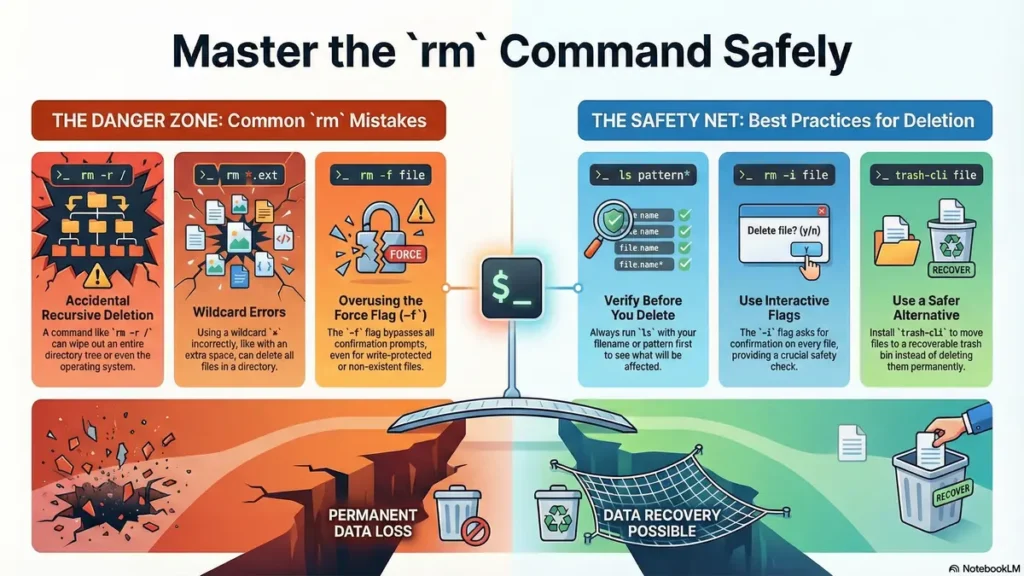
The rm command in linux is probably the most dangerous, but also the most valuable of all of Linux’s tools.
A couple wrong paths or typos, and you’ll wipe out your entire project, user files, or even your whole directory structure without having the opportunity to restore from a recycle bin.
This article walks you step-by-step through deleting safely until you feel comfortable executing an rm command in linux that doesn’t destroy your work.
What You’ll Learn
You will learn how to use rm command in linux,delete files, directories (including large trees), using prompts and using force flags safely, and establishing safe habits to avoid unwanted situations.
In this article, you will have the knowledge and ability to use the rm command with confidence rather than fear, so that your file system is always organized, and your critical data is protected.
Table of Contents
- Basics and permanent deletion
- Basic syntax and single-file delete
- Delete multiple files and patterns
- Recursive deletion of directories (-r, -R)
- Interactive and safer deletion (-i, -I)
- Force deletion (-f) and when not to use it
- Combining -rf and why it’s dangerous
- Common errors and protections
- Safe cleanup strategies
- Best practices and safer alternatives
- What Are the rm command in linux? Your Questions Answered
Basics and permanent deletion
Basic File Deletion
Deleting a file from the current directory is as simple as running rm filename.txt
Deleting a file that is not in your current directory can be done using absolute (complete, physical) paths, for example, if the file is located at /home/user/tmp/test.log, you would use rm /home/user/tmp/test.log
rm Command In Linux Example
To remove a file named test.log, you will run rm test.log.
After running the command, the terminal will not ask you for confirmation; it will simply remove the file from the file list and return you to the prompt.
Essential Verification Step
An essential key to successfully using the rm command in linux is to verify the filename with ls prior to hitting rm.
If the output of ls filename.txt is precisely what you anticipated, you may confidently replace ls with rm to delete that file.
Basic syntax and single-file delete
You can delete a single file in the current directory with this command: rm filename.txt.
You can delete a file that is stored elsewhere on your hard drive with this command: Using rm with an absolute path.
To delete test.log you would enter rm test.log. When you enter this command the file will not prompt for confirmation before deletion, but will immediately disappear from your list of files, and you will return to your command prompt.
Another way to ensure that you are safely deleting a file is to ensure that you enter the full, absolute path of the file. Therefore, to delete old_note.txt you would use the command rm /home/user/tmp/old_note.txt. If you were to enter a relative path like ./old_note.txt, you could mistakenly delete a file that has the same name in the wrong directory.
The best advice for using the rm command safely is to always check with ls that you have the correct file name. If you see what you expect from ls filename.txt then you may feel confident using rm filename.txt instead of ls filename.txt.
Delete multiple files and patterns
With the rm command in linux, you can specify a list of files to delete or use wildcards to specify multiple pieces of information to delete.
To delete more than one specific file at once in linux, type: rm file1.txt file2.txt file3.txt into your command prompt.
By using a wildcard character such as an asterisk (*), you can use the command to remove files with a similar extension, for instance, you can type: rm *.jpg and every .jpg file in your current folder will be removed.
Additionally, you can clear out related log files at once by using patterns. For example, you could use: rm error_log*.
For example, suppose you have three backup files; if you want to delete them all at once, the most efficient way is typing: rm backup1.zip backup2.zip backup3.zip. This action will remove the specified file(s) only.
Although wildcards enable the rm command in Linux to be extremely efficient and can greatly increase the power of this tool, you must be cautious not to cause accidental data loss. For instance, typing rm *.pdf will remove every .pdf document located in the current directory; however, if you were to type rm * .pdf (space before “.pdf”), every file in the current directory and any file named .pdf would be removed.
Recommended best practice is to list the files with a given pattern before executing rm with wildcards. You can use the following command to display a list of files matching your pattern: ls *.pattern
Recursive deletion of directories (-r, -R)
When you issue an rm command, by default, Linux does not allow you to delete any directory unless you use the recursive option, which is a basic task for all Administrators.
The recursive option allows you to:
– Remove entire directory trees using -r or -R
– Remove multiple levels of nested subdirectories and all files in a single step
– Remove complete project folders that are no longer being maintained
– Remove cache directories containing numerous small unneeded files
– Organize how you write scripts that will clean up complex folder structures
When you run rm -r my_old_project/ with the recursive option, the rm command will access my_old_project/, remove all of its files, access my_old_project/sub_directory/ and remove all of its files, and delete all of the sub directories.
The rm command is significantly more powerful than the rmdir command, which will only remove empty directories from the Linux Operating System. The rm command with the recursive option is how to “un-install” locally compiled software or remove copied Git repositories.
WARNING! A command of rm -r / will effectively destroy a complete Linux Operating System if executed by an account with root privileges! Be very careful when using the recursive option with the rm command. Always double check that you are running the correct command against the correct directory.
Interactive and safer deletion (-i, -I)
Deleting files in linux with the command rm can be a scary process, especially if you are worried that you might delete the wrong file by mistake. Fortunately, there are several interactive flags available when using the rm command to help protect against accidental deletions.
The -i flag will prompt you for confirmation whenever you delete a single file.
The -I flag will only prompt you for confirmation once when deleting more than three files or deleting a directory recursively using the -r option.
Both flags will give you an additional safeguard against the possibility of accidentally hitting the “enter” key and deleting a file without your knowledge.
If you ever use the root user, it is important to adopt a habit of using the interactive mode whenever you are deleting files.
For example, when you run the command: rm -i important_data.csv, the command will pause and ask you to confirm: rm: remove regular file 'important_data.csv'?. You have to type ‘y’ and press “enter” to continue with the deletion.
When using the -I flag (capital “I”), you can balance safety and speed when deleting files. When using the rm command on a single file, the command will not prompt for confirmation, but when deleting a complete directory using the -r option, the command will pause to verify that the user is sure they want to delete the directory.
Many linux system administrators will have an alias for the rm command in their .bashrc file (e.g., alias rm='rm -i').
Force deletion (-f) and when not to use it
The Linux rm command sometimes stops when it can’t delete files.
The -f (force) flag makes it delete anyway, but this power can be dangerous.
Examples of using force include:
1. Removing non-existent files without requiring confirmation
2. Removing write-protected files without seeking permission
3. Running automated scripts that will prevent user confirmation
4. Removing temporary files at the system level where strict permissions apply
5. Speeding up the process of removing large and complex directory trees.
The rm command in Linux will typically display an error message before removing a file for which you are not the owner, therefore prompting for confirmation. However, the use of anonymous flags (the -f flag) in this instance will result in the skipping of that prompt. In essence then, the command sender will effectively tell the operating system, “I am aware of what I am doing; please perform my request.”
The exception to this notion is for cases where the sender has complete assurance as to what the path is, such as when clearing the application cache in a cron job. In other situations or under other usages, the use of the -f flag tends to hide errors as opposed to providing transparency.
Combining -rf and why it’s dangerous
Everyone knows rm -rf can accidentally delete everything if you type wrong.
Linux has built-in protections to stop this.
By default, rm -rf / won’t delete your whole system thanks to --preserve-root.
You get “Permission denied” errors for files you don’t own – this stops accidental damage.
Read-only files ask for confirmation before deletion to protect important data.
Without -r, directories show “not empty” error to prevent mistakes.
Modern Linux shells block typos that would delete your root directory.
Try rm -rf / – it says “Unsafe to delete root!”
Use --no-preserve-root to bypass (don’t!).
Common errors and protections
-
Error: Typing
rm -rf /accidentally deletes entire system.Protection:
--preserve-rootprevents recursive deletion from root directory. -
Error: Space in path like
rm -rf /home/user /docsdeletes everything after space.Protection: Always use quotes:
rm -rf "/home/user/docs". -
Error: Forgetting recursive flag on directories gives “directory not empty”.
Protection: Use
lsfirst to verify directory contents. -
Error: Deleting read-only files without force flag.
Protection:
-fflag overrides prompts but use-ifor interactive confirmation. -
Error: Wrong absolute path like
rm -rf /homeinstead of/home/user.Protection: Use tab completion and
pwdto verify current location. -
Error: Deleting active log files causes service crashes.
Protection: Use
logrotateor truncate with:> file.log. -
Error: Permission denied on owned files.
Protection: Check ownership with
ls -lbefore usingsudo rm. -
Error: Wildcard expansion like
rm *.logdeletes unexpected files.Protection: Use
findwith-printfirst:find . -name "*.log" -print. -
Error: No backup before mass deletion of node_modules/build dirs.
Protection: Use
trash-cliinstead ofrmfor recoverable deletion. -
Error: Running cleanup scripts from wrong directory.
Protection: Add
pwdcheck andread -p "Confirm? [y/N]"in scripts.
Safe cleanup strategies
To manage logs and temporary files effectively using the rm command in Linux, we benefit from an efficient process of utilizing automation and extreme care in using the rm command to maintain your system efficiently.
An example of a typical workflow for cleaning up logs includes:
- Using the find command together with rm to locate and delete any old log files.
- Remove any old Docker images or build artifacts from your system to use less valuable SSD space.
- Delete any temporary session files older than 30 days.
- Clear any local mail spools or print queues that have become stuck.
- Remove all of the “sandbox” files created during testing to keep your development environment as clean as possible.
A good first step in any cleanup action is always to use the find command to generate a temporary list of files before using the delete option. The command is ‘find /tmp -name “*.tmp”‘ and once you are satisfied the results of the command are as you expected you should add ‘-delete’ to your find command to perform the internal delete operation of all matching files in that directory.
In log rotation it is best to never remove a currently active log file using rm. If using the rm command to remove an .old or .gz backup of the log file, leave the current log file intact so a service crash doesn’t occur.
In a typical web development scenario, you may also run rm -rf dist/ to remove a build. To make this safer with rm there is the option to create a cleanup script that checks your current working directory before running rm.
Best practices and safer alternatives
To drill down into the linux rm command and how to improve your usage of it, the last step would be to figure out when it is appropriate to use it. There are a variety of things/tools that can be used to create “safety nets” around our files/data.
For example:
- Installing the trash-cli package allows you to utilize a trash bin, rather than completely remove files.
- Instead of utilizing the linux rm command, using the mv command allows you to transfer files into a /tmp folder.
- Always maintain a fresh backup of your home directory and related configuration files.
- Utilize Gift (git) as a version control system, allowing you to reverse and restore any file you accidentally removed.
- Develop the habit of “Look Before You Leap” by executing the ls command prior to using rm.
The trash-put (the new name for the trash command) command is used in place of the linux rm command. The trash-put command removes files from your working directory but does not erase them; instead the trash-can command moves these deleted files to your local trash folder. If you realise you need something you removed five minutes ago, you can easily “Undo” your action using this command.
Another good habit is transferring files into the /tmp directory, since the contents of this directory are wiped during rebooting. This indirectly provides you with the ability to have an uncompleted name-targeted delete operation right away while retaining possession of the file for a little while longer after you press the “rm” button.
The rm command in linux invades the purpose for which it was intended, and it was created to help remove files from one’s operating system.
Your Questions Answered
Q: What is rm command in linux used for?
It permanently deletes files and directories from the filesystem. There is no recycle bin by default, so you must use it carefully to avoid losing important data.
Q: How do I delete a directory with rm command in linux?
You must use the recursive flag: rm -r directory_name. Without -r, the command will fail and say it cannot remove a directory.
Q: Can I undo an rm command in linux?
Generally, no. Once the command finishes, the file is unlinked. While data recovery experts might find fragments, there is no built-in “undo” feature in Linux.
Q: What does the -f flag do in rm command in linux?
The -f (force) flag ignores non-existent files and never prompts for confirmation, even if a file is write-protected.
Q: Is rm -rf / safe to run?
Absolutely not. This command will attempt to delete every single file on your computer, making the system unbootable and erasing all your data.
Q: How do I prompt before every delete in rm command in linux?
Use the -i flag: rm -i filename. The system will ask you for a ‘y’ or ‘n’ before actually removing the file.
Q: How do I delete all files of a certain extension?
Use the asterisk wildcard with the rm command in linux, for example: rm *.log to delete all log files in the current folder.
Q: What is the difference between rm and rmdir?
rmdir can only remove empty directories. The rm command in linux with -r can remove directories that still contain files.
Q: How do I delete a file that starts with a dash (-)?
Use -- to tell the rm command in linux that the flags have ended, like this: rm -- -filename.
Q: Why do I get “Permission denied” with rm command in linux?
You don’t have the necessary permissions to modify that directory or file. You may need to use sudo rm if you are authorized.
Q: Does rm command in linux securely wipe data?
No, it only removes the index. To securely wipe data so it can’t be recovered, you should use the shred command instead.
Q: How do I see what rm command in linux is doing?
Use the -v (verbose) flag: rm -v filename. It will print a message for every file it successfully removes.
Q: How do I delete thousands of files without crashing the shell?
Instead of rm *, use find . -type f -delete. This handles large file lists more efficiently than the standard rm command in linux.
Q: Can I use rm command in linux to delete hidden files?
Yes, but wildcards like * usually ignore hidden files (starting with a dot). You must specify them directly, like rm .hidden_file.
Q: What is the -I flag (capital I)?
It is a safer interactive mode. The rm command in linux will only prompt once if you are deleting more than three files.
Q: How do I delete a file with a space in the name?
Put the filename in quotes: rm "file name.txt" or use a backslash: rm file\ name.txt.
Q: Does the rm command in linux follow symbolic links?
No, it only deletes the link itself, not the file or directory that the link points to.
Q: What is –preserve-root?
It is a safety feature that prevents the rm command in linux from operating on the root directory (/) recursively.
Q: How can I safely practice using the rm command in linux?
Create a dummy directory with mkdir test_dir and some empty files with touch file{1..10}.txt to practice your commands.
Q: Can I use rm command in linux on a mounted network drive?
Yes, but be extra careful. Network deletions can be slower and often have different permission rules than local disks.
Mastering the rm command in linux is about more than just knowing how to delete files; it’s about developing the discipline to handle a powerful tool safely. You’ve learned how to perform basic deletions, use wildcards for efficiency, and leverage recursive flags for directory management. More importantly, you now know how to use interactive prompts and avoid the catastrophic force-flags that can destroy an entire system in the blink of an eye.
The “no-trash” nature of the Linux terminal may seem intimidating at first, but it encourages a level of precision that makes you a better administrator. By checking your paths with ls, using the -i flag during critical work, and exploring safer alternatives like trash-cli, you have turned the rm command in linux from a source of anxiety into a reliable utility for keeping your system organized. Always remember to back up your data, and use your newfound skills to manage your Linux environment with total confidence.
Linkedln Connect on LinkedIn