
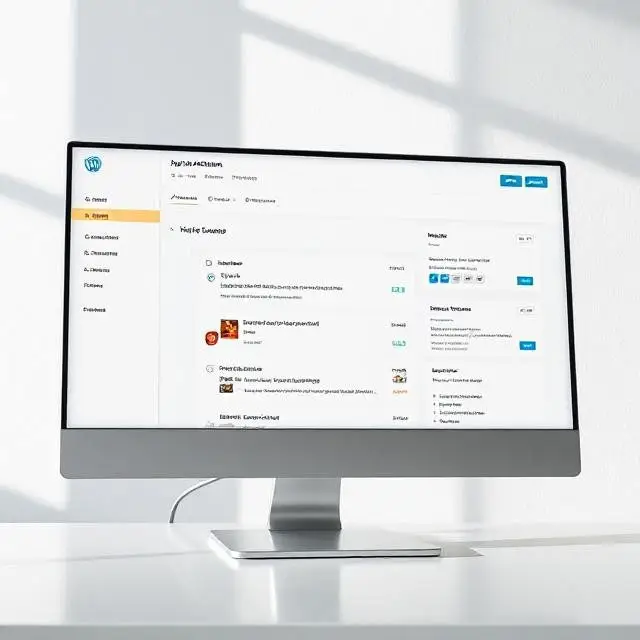
The WP Admin Dashboard is the control center of your WordPress website. It allows you to manage content, customize settings, and maintain your site efficiently. Whether you’re a beginner or an experienced user, mastering the WordPress admin dashboard is essential for website success. In this article, we will explore all the key features and how to use the dashboard effectively.
What Is the WP Admin Dashboard?
The WP Admin Dashboard is the backend interface of your WordPress site. It appears after you log in to your website’s admin panel, usually at yoursite.com/wp-admin. Here, you can manage posts, pages, plugins, themes, users, and more. It offers a user-friendly way to control every aspect of your website without coding knowledge.
Key Features of the WP Admin Dashboard
Dashboard Home Screen
The first screen you see after login shows an overview of your site’s activity. It includes widgets such as “At a Glance,” “Activity,” “Quick Draft,” and “WordPress News.” These widgets provide useful insights into your website’s content and recent actions.
Posts and Pages
You can easily create, edit, or delete blog posts and pages. The editor allows formatting text, adding images, embedding videos, and managing categories and tags.
Media Library
Upload and manage all your images, videos, and files in one place. You can add media directly to posts or pages with a simple drag-and-drop interface.
Plugins and Themes
Install, activate, or update plugins and themes from the dashboard. Plugins add extra features, while themes control your site’s look and feel.
Settings
Control site-wide settings such as site title, URL, permalink structure, reading preferences, and more. Properly configuring these ensures your website runs smoothly.
Tips for Beginners
- Explore each menu slowly to understand its functions.
- Use the built-in help section available on each screen for guidance.
- Keep your WordPress, themes, and plugins updated from the dashboard to ensure security.
- Regularly back up your site using plugins or hosting tools.
- Customize your dashboard widgets to see the most important information first.
How the WP Admin Dashboard Supports Website Growth
The dashboard is designed to simplify managing content and technical aspects. It helps you focus on creating quality content, optimizing SEO, and engaging your audience. With new features and updates, it continues to evolve, making WordPress the most popular CMS worldwide.
Frequently Asked Questions
- 1. What is the WP Admin Dashboard?
- The WP Admin Dashboard is the backend control panel for managing your WordPress website’s content, appearance, plugins, and settings.
- 2. How do I access the WP Admin Dashboard?
- You can access it by visiting yourdomain.com/wp-admin and logging in with your admin credentials.
- 3. Can I customize my WP Admin Dashboard?
- Yes, you can customize dashboard widgets, arrange menu items, and use plugins to change the dashboard layout.
- 4. How do I update WordPress from the dashboard?
- Navigate to the Updates section from the dashboard menu to apply WordPress core, theme, and plugin updates.
- 5. Can I manage multiple websites from one dashboard?
- Not directly, but using WordPress Multisite or management tools like ManageWP allows multi-site management.
- 6. What user roles exist in WordPress dashboard?
- Roles include Administrator, Editor, Author, Contributor, and Subscriber, each with different access levels.
- 7. How do I add new users from the dashboard?
- Go to Users > Add New, then fill in the user details and role assignment.
- 8. How to manage plugins from the dashboard?
- Use the Plugins menu to install, activate, deactivate, or delete plugins.
- 9. Can I change my site’s theme via the dashboard?
- Yes, under Appearance > Themes, you can install and activate new themes.
- 10. How do I create a new post using the dashboard?
- Go to Posts > Add New and use the post editor to add content, images, and other media.
- 11. Is there a way to schedule posts?
- Yes, the post editor allows scheduling content to be published at a later date and time.
- 12. How can I optimize my website SEO from the dashboard?
- Use SEO plugins like Yoast SEO or RankMath accessible via the dashboard for optimization features.
- 13. Can I backup my site using the WP Admin Dashboard?
- Yes, several backup plugins can be managed directly from the dashboard to create backups.
- 14. How to monitor site health from the dashboard?
- WordPress includes a Site Health tool under Tools to check for performance and security issues.
- 15. What is the Admin Bar in WP Dashboard?
- The Admin Bar is the top toolbar allowing quick access to site, comments, and adding new content.
- 16. How do I customize dashboard widgets?
- Use the Screen Options tab at the top right of your dashboard pages to enable or disable widgets.
- 17. Can I change the dashboard language?
- Yes, under Settings > General you can change the site language affecting the dashboard.
- 18. How do I handle comments from the dashboard?
- The Comments menu lets admins approve, reply, or delete comments on posts and pages.
- 19. How secure is the WP Admin Dashboard?
- With proper updates, strong passwords, and security plugins, the dashboard can be very secure.
- 20. Is the WP Admin Dashboard mobile-friendly?
- Yes, the dashboard adapts to mobile screens, allowing management on smartphones and tablets.
Complete WordPress & SEO Toolkit
- WordPress Tutorials Hub
- SEO Basics and Strategies
- Free WordPress Course + Certificate
- How to Index a Page on Google
- Best Local LLM Model for Coding
- All Top Local LLM Models
- Master Web Dev, SEO & AI
- How to Create Strong Passwords
- Search Console vs Google Analytics
Learn more about the WordPress Dashboard


